If you can code but not design, the design tool you need is not the one designers reach for. You do not want a canvas of editable vector layers or a Figma file someone else has to implement. You want code you own, in your repo, in the language your project already speaks. An AI design tool for developers is one that treats the design and the code as the same artifact: you describe a UI, you get real React and Tailwind, and you ship it without a handoff.
This is the criteria-and-workflow piece. If you want a ranked list of specific tools, that lives in best AI UI generator for developers. Here we cover what to actually evaluate, why most "design tools for developers" still fail the test, and what the workflow looks like when it works.

What developers actually need
A developer needs a design tool to remove work, not add a step. The fastest way to spot a tool built for designers wearing a "developer" label: it ends in a file you still have to translate. Here is the bar that matters when you are the one shipping the code.
What a developer needs from a design tool
- ✓Code output you own: real React, HTML, and Tailwind in your repo, not a mockup, not an image, not a Figma export
- ✓Runs where you work: inside the IDE or coding agent (Cursor, Claude Code, VS Code), not a separate browser tab you copy out of
- ✓Reads your codebase: new UI matches your existing components and tokens instead of introducing a clashing generic style
- ✓Design system as a file: a config you version-control so every generation follows the same rules, no manual policing
- ✓No Figma round-trip: design and build are one artifact, so there is no spec to re-implement by hand
- ✓Predictable pricing: a flat plan, because UI work is iterative and you should not pay a meter to explore
The two that trip people up are codebase awareness and the round-trip. Most tools generate from scratch, blind to what you have already built, so the output is something you reconcile with your design system line by line. That reconciliation is the hidden cost, and it scales with the size of your project.
How to evaluate them
Score any tool on the axes that decide whether it saves you time or just relocates the work. A tool can be brilliant at generation and still be wrong for a developer if every screen ends in a translation step.
| Criteria | Why it matters to a developer | Green flag |
|---|---|---|
| Output format | Mockups make you re-implement; code drops straight in | Real React, HTML, Tailwind you own |
| IDE integration | A browser round-trip adds friction to every change | Runs in Cursor, Claude Code, or VS Code |
| Codebase awareness | Blind output clashes with your existing system | Reads your repo and matches your components |
| Design-system config | Keeps UI consistent without manual enforcement | Reads a versioned config you commit, in any format |
| Iteration model | Linear chat hides the option you did not try | Generates several options to compare, not one at a time |
| Pricing | Metered credits punish the exploration good design needs | Flat plan plus a usable free tier |
Run the same stress test on every candidate: open one screen, iterate on it ten times, and watch two things. Does the output drift off your design system, and does your credit balance drop with every failed attempt? Both answers tell you more than any feature page.
The Figma round-trip tax
The reason most design tools miss developers is structural, not a bug. Design tools are bought by designers, so the default output is a mockup on the assumption that an engineer implements it later. For a solo developer or a small technical team, that assumption is just wrong. You are the engineer. A picture of the UI is not the deliverable, the code is.
Every handoff has a tax: export to Figma or a design file, read the spec, rebuild it in your stack, fix the import paths, then reconcile the styling with your tokens. Do that once and it is annoying. Do it on every UI change across a real product and it is the slowest part of your week. The tools that work for developers delete that loop entirely. Cursor's Design Mode gets halfway there by editing your running code in place, but it only edits what exists; it has no from-scratch design phase. The point is the same: the less translation between "what it should look like" and "the code that ships," the more a tool is built for you.
The developer workflow
When an AI design tool fits a developer, the loop has no detour through a design file. It looks like this:
The developer workflow, no design file
Describe the screen in plain English
From inside your editor: "A settings page with a sidebar, a profile section, and a danger zone." No layer naming, no component-library spelunking.
Explore directions in parallel
A good tool gives you several variations at once, so you compare instead of re-prompting a single thread and hoping the next answer is better.
Generate against your real code
The tool reads your existing components and config, so the output uses your button, your spacing, your tokens, not a generic default set.
Pull the code into your repo
You get React and Tailwind you own, commit it, and keep building. There is no separate "now implement the design" task because the design was already code.
That is the whole difference from the designer workflow. There is no artifact that lives outside your codebase and no moment where the work changes hands. For more on driving this from your agent specifically, see Claude Code UI design, and if you have no designer at all, design without a designer covers the bigger picture.
Where Superdesign fits
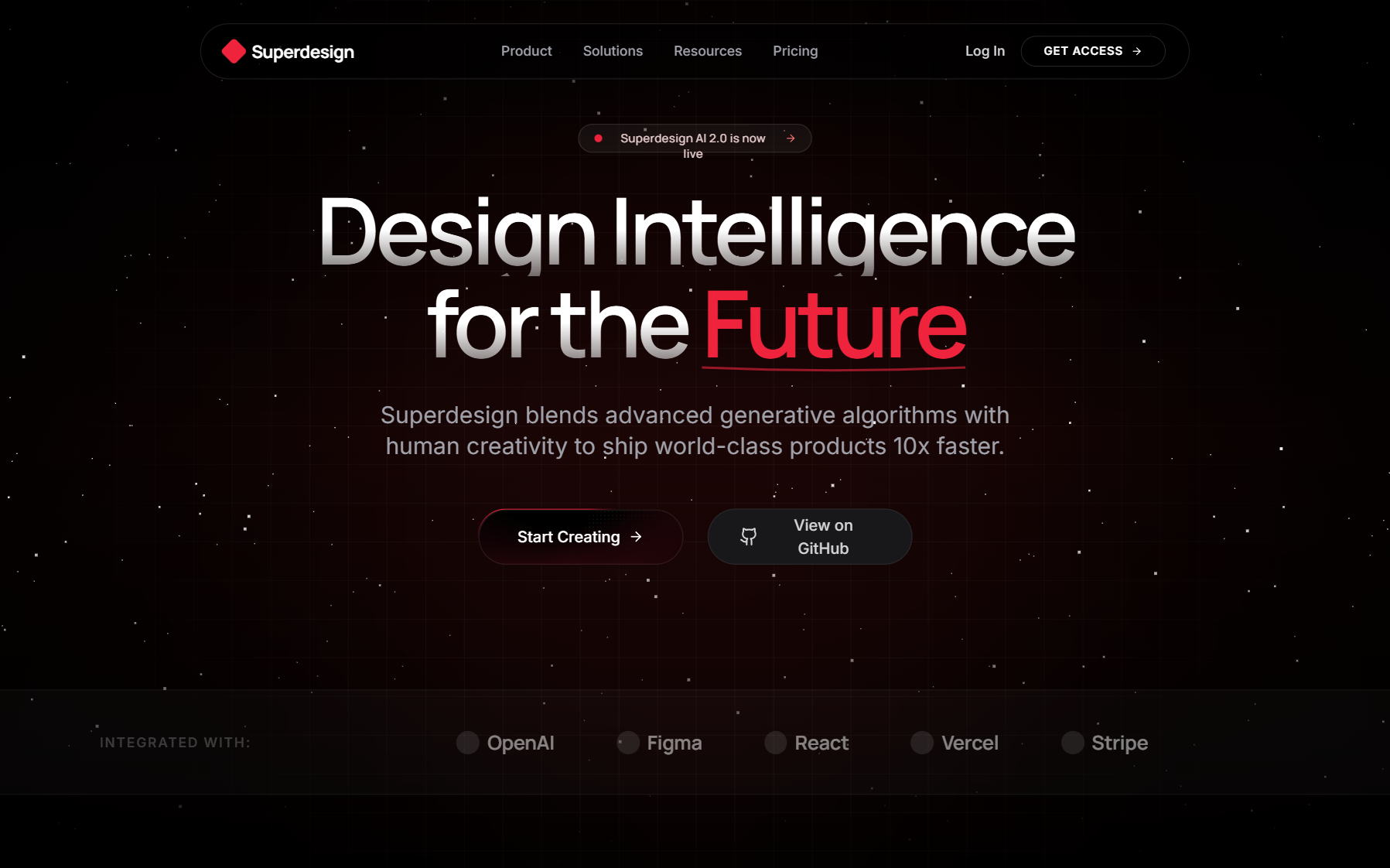
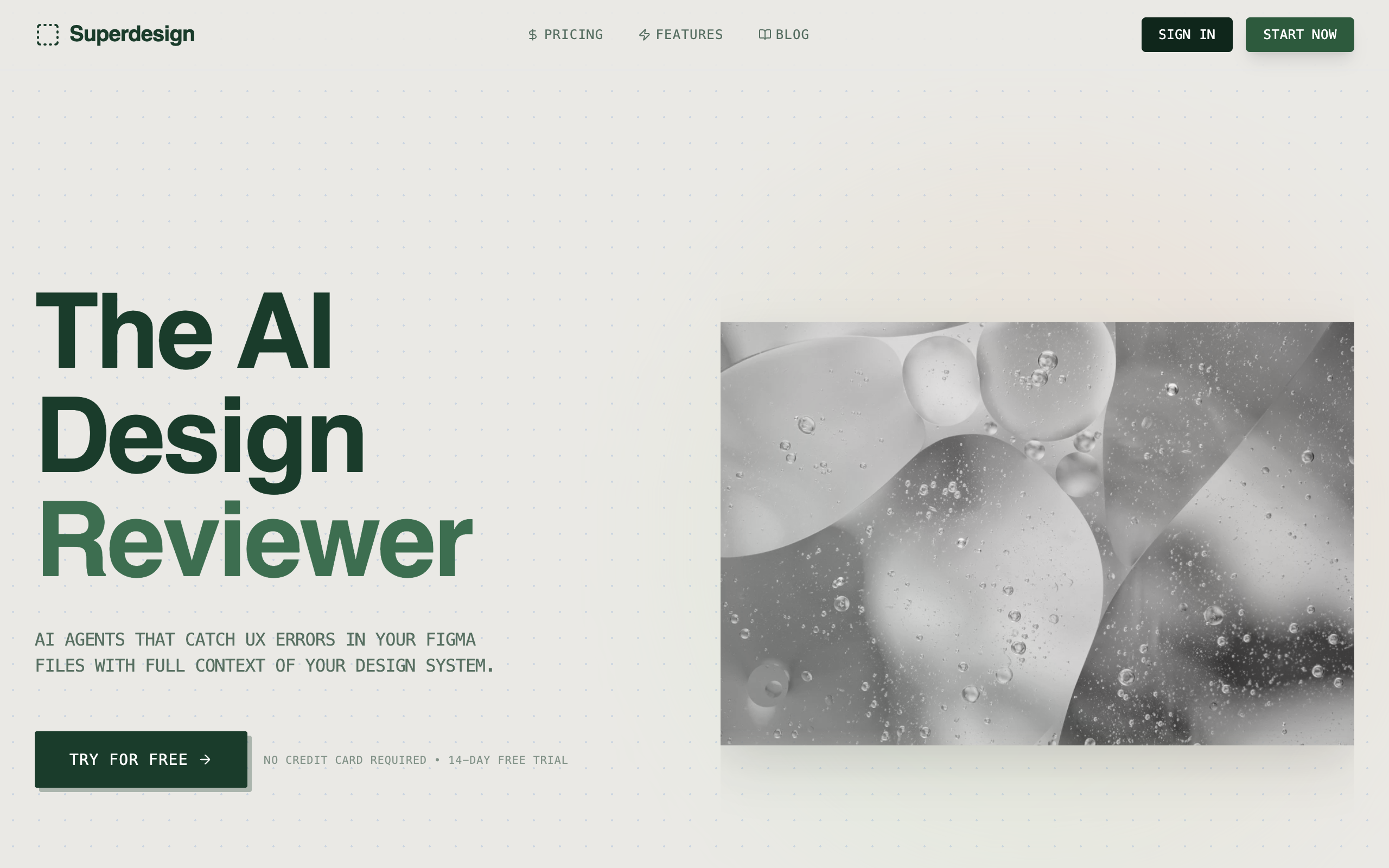
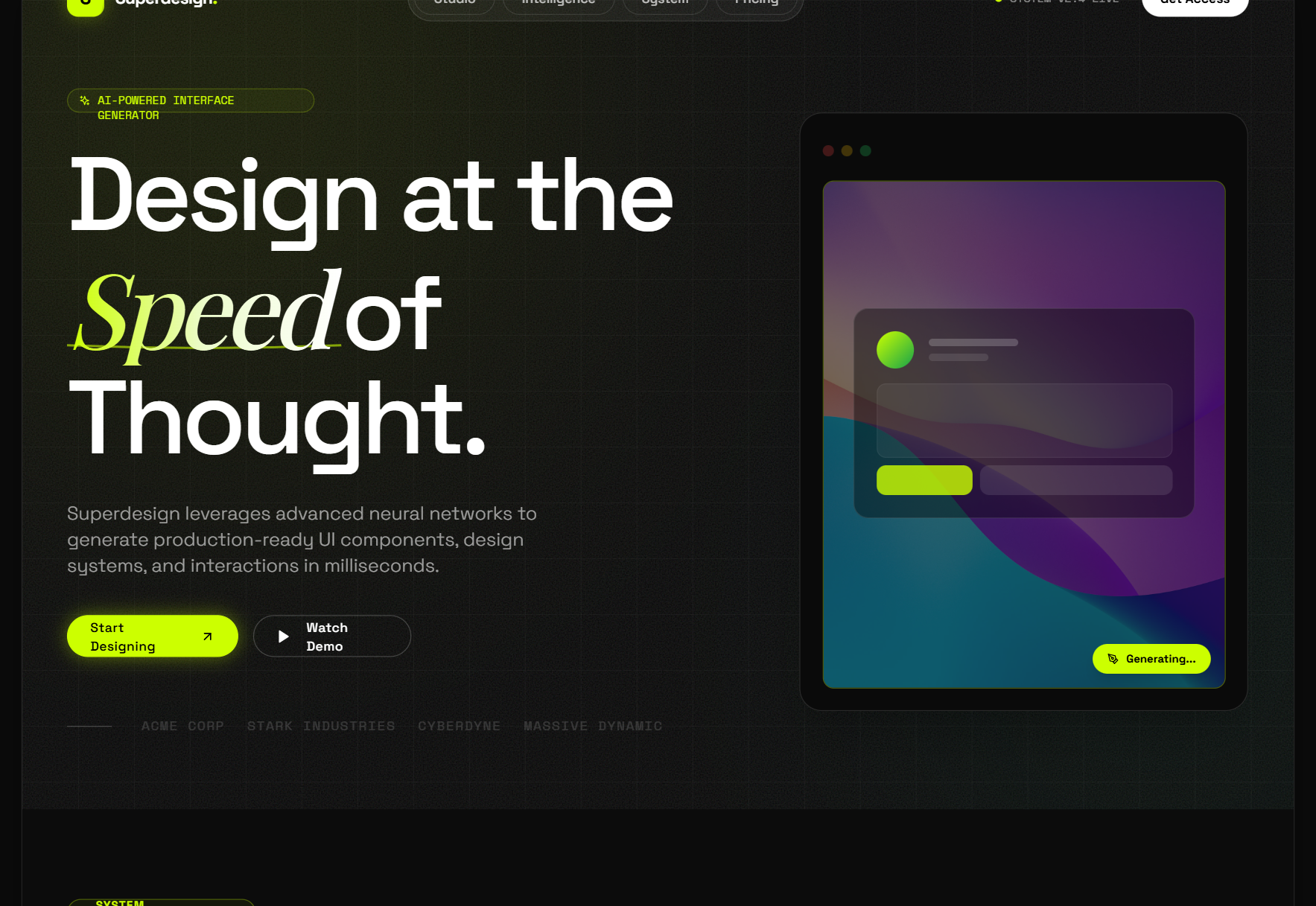
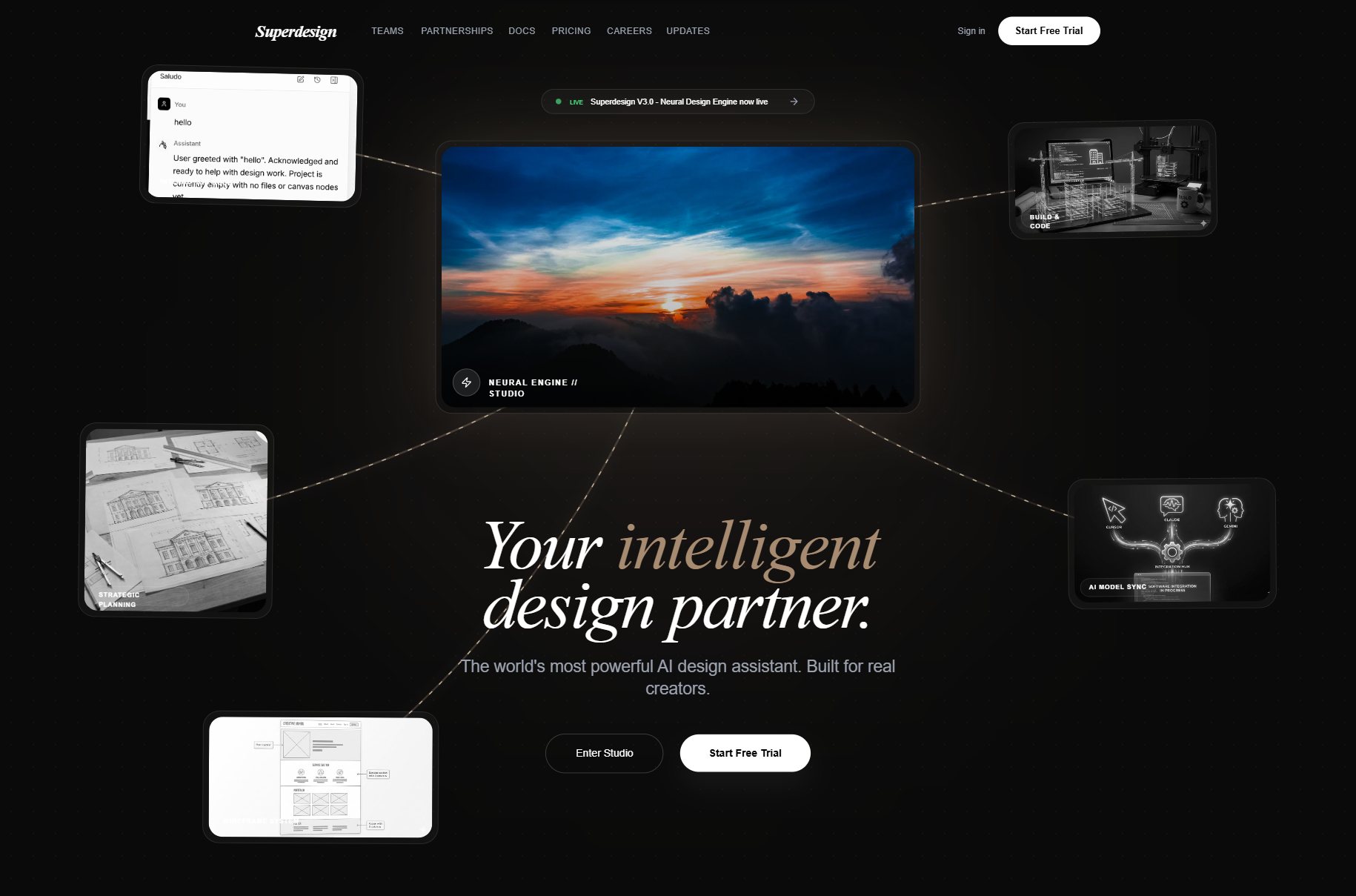
Superdesign is built for exactly this developer-first shape. It is an AI design agent that generates UI on an infinite canvas and hands back real React and Tailwind, and the most developer-native way to use it is as a skill inside your coding agent. You install it once:
npm install -g @superdesign/cli@latest
superdesign login
npx skills add superdesigndev/superdesign-skill
Then you drive it with /superdesign and a plain-English request. On an existing project it investigates your current UI first and writes a design-system file (the practical version of a DESIGN.md) plus HTML replicas of your real pages, so new designs build on what you have instead of starting blank. It opens a canvas, explores several directions at once, designs whole multi-page flows that are clickable rather than static, then hands the code back cleanly. It checks every box above: code you own, runs in Cursor or Claude Code, reads your repo, a versioned design-system file, no Figma round-trip, and a flat $20/month plan with a free tier instead of a credit meter.
Honest tradeoff: if your team's source of truth genuinely is Figma and a designer owns the visual layer, a Figma-centric tool fits your org chart better. Superdesign is built for the case where you are the developer and the designer, which is most indie hackers, solo founders, and small technical teams.
A blank canvas is its own kind of paralysis for developers, the design equivalent of a blank file. The prompt library is the cheapest way around it: grab a prompt that already produces a solid result, point the tool at your codebase, and iterate from a real starting point instead of a text description.
The bottom line
Pick a design tool the way you pick any developer tool: by what it leaves in your repo and how little it makes you context-switch. For developers that means code you own, IDE-native generation, codebase awareness, a design-system file, no Figma round-trip, and pricing that does not punish iteration. Superdesign was built around that exact list. You write the product, the agent handles the design, and the output is code, not a picture of it.