If Cursor changed how you write code, you've probably asked yourself: is there a Cursor for design? Something that lives inside your IDE, understands your codebase, and lets you generate polished UI without opening a separate design tool?
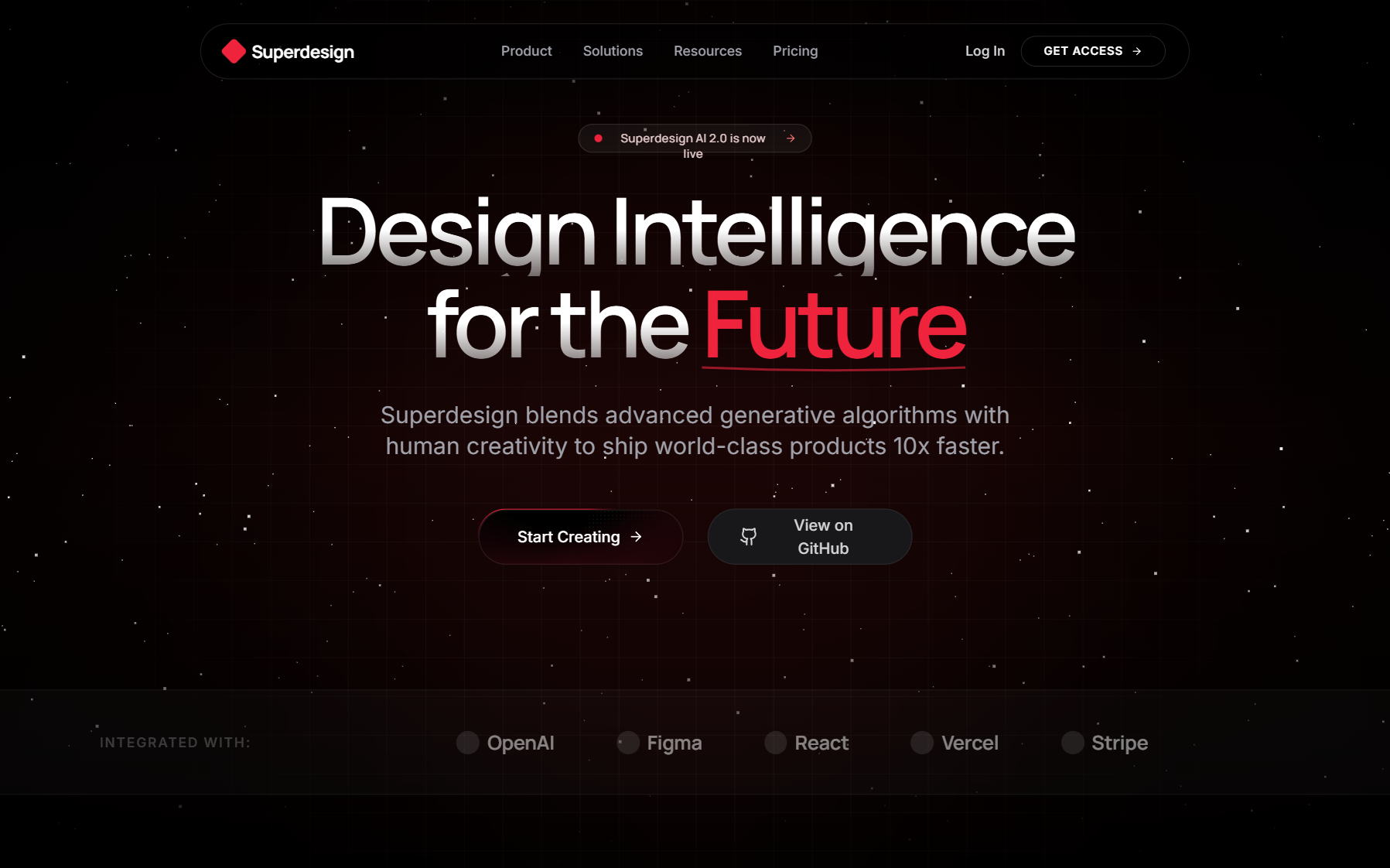
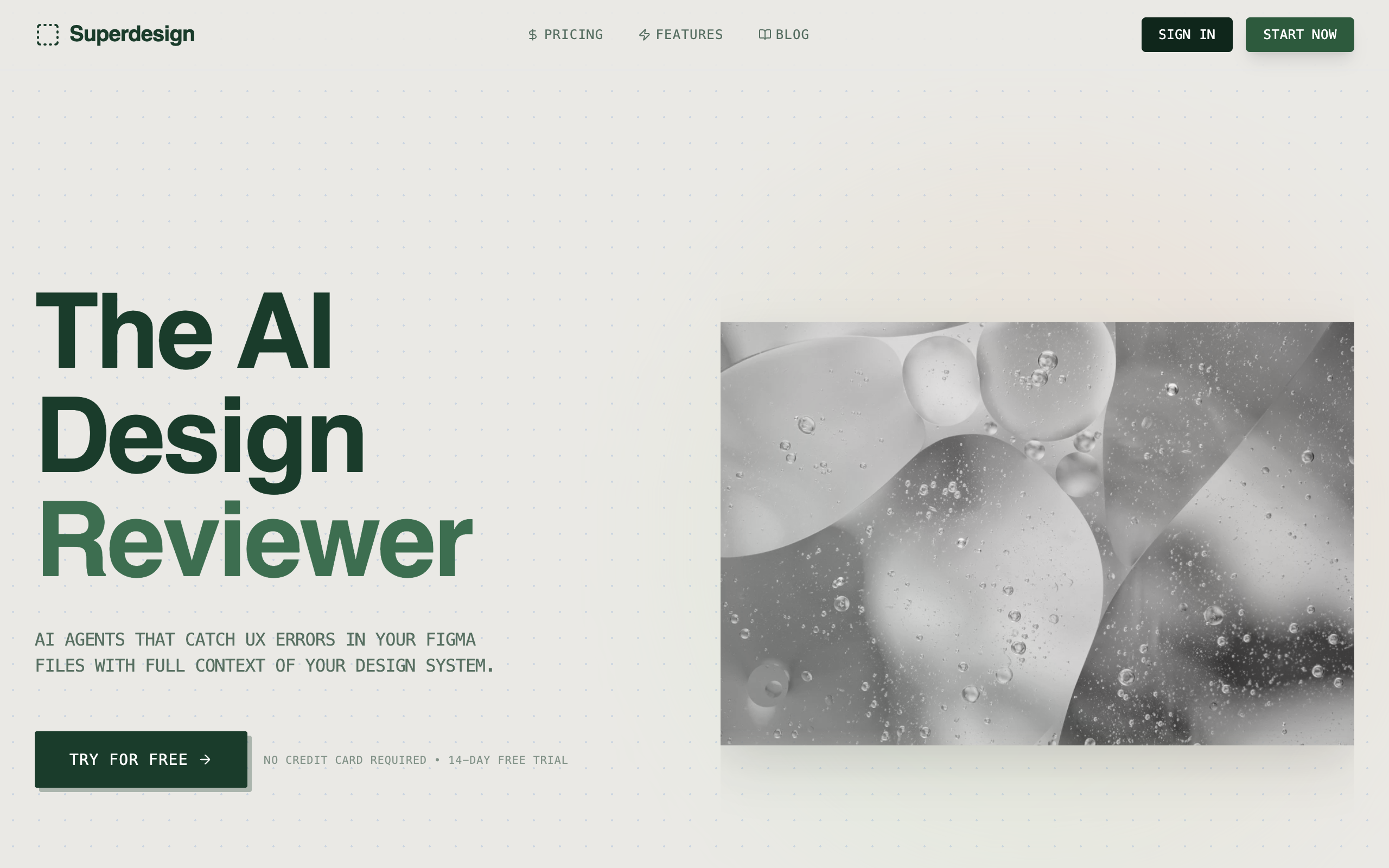
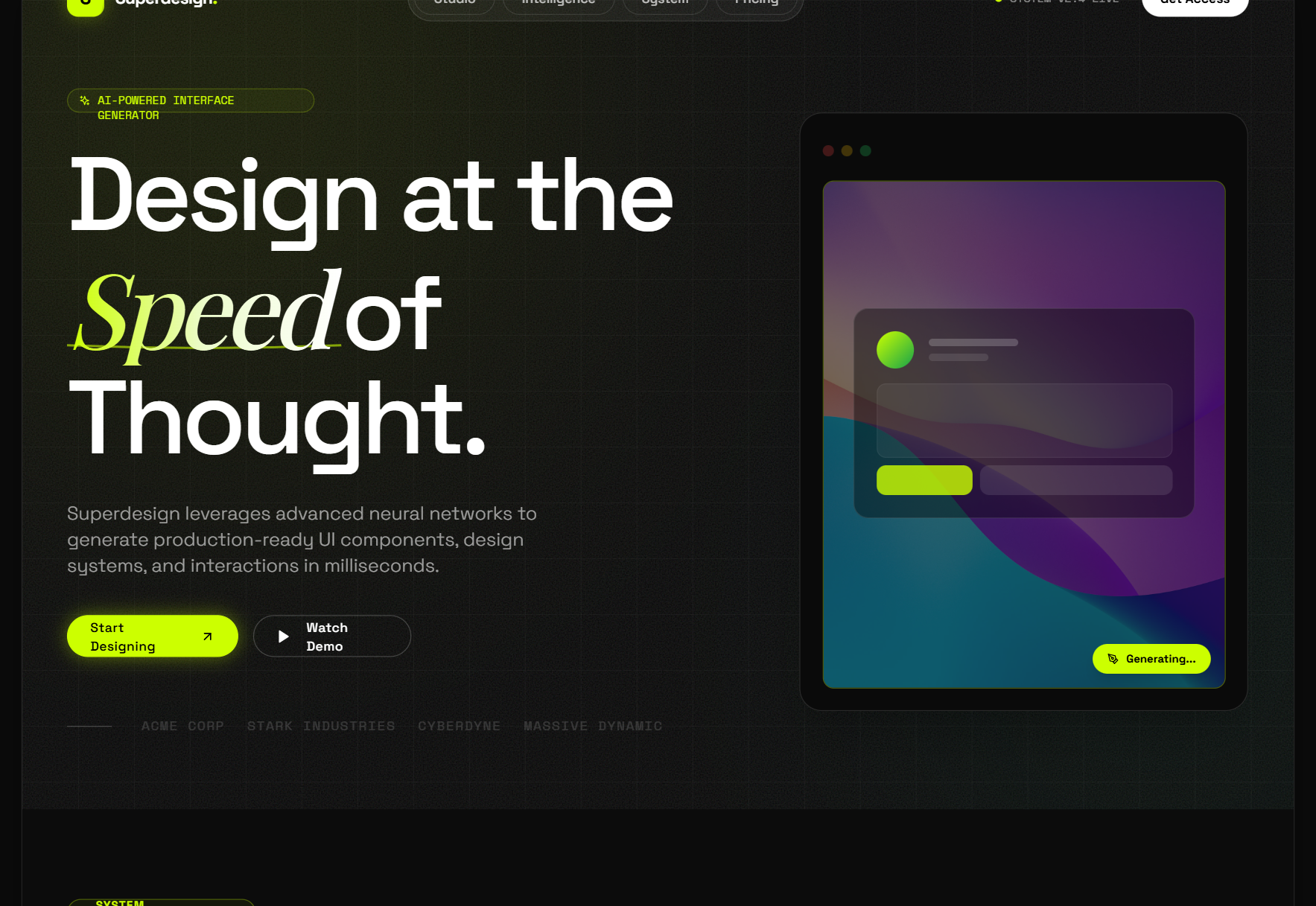
The answer is yes - and it's called Superdesign. Superdesign is an open-source AI design agent built to work the same way Cursor works for code: you describe what you want in natural language, and the tool generates production-ready UI directly inside your development environment.
This post breaks down what a "Cursor for design" actually means, why the IDE-native approach matters, and how Superdesign compares to the browser-based design tools you might be using today.

What does "Cursor for design" actually mean?
Cursor transformed coding by making the IDE the primary interface for AI assistance. Instead of switching to ChatGPT in a browser tab, copying code back, and hoping it fit your context, Cursor put the AI inside the editor where it could read your files, understand your project structure, and generate code that actually worked in context.
The design world has had the opposite problem. Most AI design tools are browser-based sandboxes: you open a tab, generate a UI, copy the output, and then manually adapt it to your actual codebase. The context is always missing. The AI doesn't know your component library, your design tokens, or your existing file structure.
A "Cursor for design" solves this by doing for UI what Cursor did for code:
- Lives inside your IDE - no context switching between tools
- Reads your codebase - understands existing components, file structure, and design tokens
- Generates in context - output goes directly into the right folder, with the right imports
- Iterates from your prompts - describe what you want, refine with more prompts, just like coding with Cursor
This is exactly the workflow Superdesign enables. And it's why Superdesign's own website describes it as "The Cursor for Design" - not as a metaphor, but as a literal description of how it works.
Why IDE-native design generation matters
Most developers and product builders who do their own UI work have experienced the same frustrating loop:
- Open a browser-based design tool (v0, Bolt, Lovable, or even Figma)
- Generate or design a component
- Copy the output
- Paste it into your codebase
- Fix import errors, adjust naming conventions, match your design system
- Repeat for every component
The output from a browser-based tool is always generic - it doesn't know that your project uses Tailwind v4, or that your button component is called PrimaryButton, or that your colors live in a theme.ts file. Every paste introduces friction.
IDE-native generation eliminates this loop entirely. When Superdesign runs inside Cursor or VS Code, it has access to your entire project. It can read your existing components, respect your naming conventions, use your design tokens, and write files to the right location. The output is immediately usable - no copy-paste adapter layer required.
For solo developers and small teams building with Cursor and Claude Code, this is the difference between a tool that helps and a tool that gets in the way.
How does Superdesign work inside Cursor and VS Code?
Superdesign is available as an extension for Cursor, VS Code, Windsurf, and Claude Code. Once installed, it adds a design panel directly inside your IDE.
Here's the core workflow:
1. Describe the UI you want
You start by describing the component or screen in natural language. "A user profile card with an avatar, name, email, and a follow button in dark mode." Superdesign generates multiple UI variants based on your prompt - typically three different visual interpretations. Not sure how to phrase it? Browse the design prompt library for proven starting points and adapt one to your component.
2. Compare variants side by side
Instead of generating one output and iterating from there, Superdesign shows you multiple design directions simultaneously. You can compare layouts, color treatments, and component hierarchies before committing to a direction. This is one of Superdesign's most distinctive features: parallel variant generation that mirrors how experienced designers actually explore options.
3. Iterate with follow-up prompts
Once you've picked a direction, you refine with additional prompts. "Make the avatar larger and add a divider above the follow button." "Show a loading state for the follow button." The AI maintains context across iterations, so you're not starting from scratch with each prompt.
4. Output goes directly into your project
The generated component lands in your project as a real file - not a screenshot, not a Figma frame, not a sandbox preview. It's production-ready code that imports correctly, uses your existing dependencies, and follows the patterns already in your codebase.
5. Define your design system with DESIGN.md
Superdesign supports a DESIGN.md file at the root of your project. This file defines your design system: typography, color palette, spacing scale, component conventions. Every generation reads this file and respects it - so all your AI-generated UI stays consistent with your brand and design system automatically.
This is the design equivalent of having a .cursorrules file that tells the AI how your codebase is structured.
Superdesign vs. browser-based design tools
There are a lot of AI design tools in 2026. Here's how Superdesign's IDE-native approach stacks up against the browser-based alternatives:
Superdesign vs. v0 by Vercel
v0 is Vercel's prompt-to-UI generator. It's browser-based, generates React components from prompts, and outputs clean Tailwind CSS. The output quality is solid - but v0 lives in a browser tab and has no awareness of your actual project. You generate a component, copy the code, and integrate it manually. For quick prototyping, v0 is great. For consistent, context-aware generation across a whole product, the copy-paste loop gets expensive fast.
Superdesign skips the copy-paste step entirely. It generates directly into your project, using your actual files as context.
Superdesign vs. Figma (with AI plugins)
Figma is still the industry standard for design collaboration and handoff. Its AI features (auto-layout, component suggestions, Make) are useful for designers - but Figma is fundamentally a design-to-design tool. The output is Figma frames and components, not code. Getting from Figma to production still requires a developer handoff step.
Superdesign generates production code from day one. There's no handoff step because the designer and developer are the same person - and they're already in the IDE.
Superdesign vs. Bolt.new and Lovable
Bolt and Lovable are full-stack app generators. They're excellent for generating complete applications quickly - but they're building tools, not design tools. Their UI output is functional rather than design-focused: one layout per prompt, no variant exploration, no design system enforcement.
Superdesign is purpose-built for the design layer. Multiple variants per prompt, DESIGN.md system consistency, and deep codebase context make it the right tool when UI quality and design system coherence matter.
Superdesign vs. Google Stitch
Google Stitch is the newest major player in vibe design. It's browser-based, voice-enabled, and designed for enterprise teams. It also popularized DESIGN.md files - a concept Superdesign uses natively. Stitch is excellent if you're a designer working in the browser. But it doesn't live in your IDE, and it's not open source.
For developers building with Cursor and Claude Code who want design generation that fits their existing workflow without switching tools, Superdesign is the better fit.
Who is Superdesign built for?
Superdesign's sweet spot is the solo developer or small team that's already building with AI coding tools and needs their design workflow to keep up. Specifically:
- Vibe coders using Cursor or Claude Code who want to generate UI without switching to a separate browser-based design tool
- Indie developers and founders who want their products to look good without hiring a designer or learning Figma
- Product engineers at fast-moving teams who own both the code and the design and need both to move at the same speed
- Teams with existing codebases who need AI-generated components to integrate correctly on the first try, not after three rounds of manual cleanup
If you're comfortable in a terminal and live in your IDE all day, Superdesign fits naturally into how you already work. There's no new tool to learn, no new interface paradigm - just a design agent that responds to natural language prompts the same way your AI coding assistant does.
Open source and IDE-first: why it matters
Superdesign is fully open source. The design agent code is on GitHub, you can inspect how it works, contribute features, and use your own API keys to reduce costs. This matters for three reasons:
Transparency
You can see exactly what the AI is doing with your code and design prompts. No black box. For teams with security requirements or a preference for open tooling, this is a meaningful differentiator.
Community
The Superdesign GitHub and Discord have an active community of developers contributing prompts, DESIGN.md templates, and feature improvements. When a new model drops, the community updates the agent. Open source compounds over time.
Longevity
Proprietary AI tools can change pricing, deprecate features, or shut down. An open source tool you can fork and self-host isn't subject to those risks. For a design agent that might become a core part of your development workflow, open source is a hedge against lock-in.
How do you get started with Superdesign in Cursor?
Setting up Superdesign takes under two minutes:
- Open Cursor (or VS Code, Windsurf, or Claude Code)
- Go to the Extensions panel
- Search for "Superdesign" and install
- Open a project and start the Superdesign panel
- Describe the UI you want: "A dark sidebar navigation with icons and labels"
- Review the generated variants, pick one, iterate with follow-up prompts
For best results, add a DESIGN.md file to your project root. Define your brand colors, typography scale, spacing conventions, and component style preferences. Every subsequent generation will respect these rules automatically, keeping your UI consistent as you build.
The free tier is generous - you can generate multiple components per day without paying. If you're using Superdesign as part of a daily development workflow, the Pro plan at $20/month is the most cost-effective way to get unlimited generations.
The future of design tooling is IDE-native
The trend in developer tooling is clear: the best tools are collapsing into the IDE. AI coding assistants, documentation search, test runners, git workflows - all of these are moving into the editor. Design generation is following the same path.
Browser-based design tools made sense when design and development were separate disciplines with separate workflows. As vibe coding and vibe design blur those boundaries, the tools need to meet developers where they work - inside the IDE, next to the code.
Superdesign is ahead of this curve. It's the first design agent built for the IDE-native workflow, and the only one that gives developers the same natural-language design interface that Cursor gave them for code.
If you've been looking for a Cursor for design, you've found it.
Try Superdesign today
Install the Superdesign extension in Cursor, VS Code, Windsurf, or Claude Code and generate your first UI component in under a minute. Free to start, open source, and built to live inside the IDE where you already work.