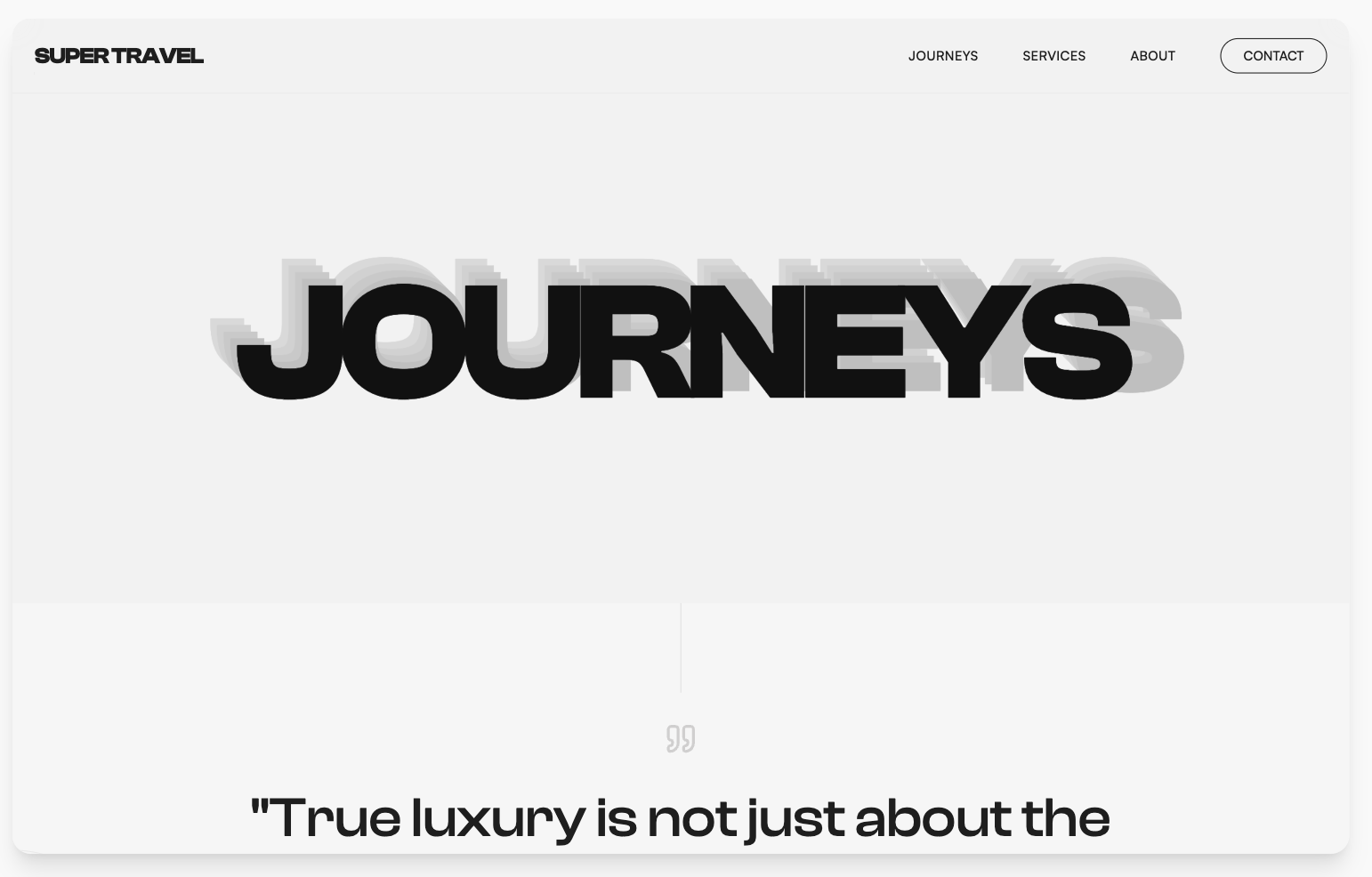
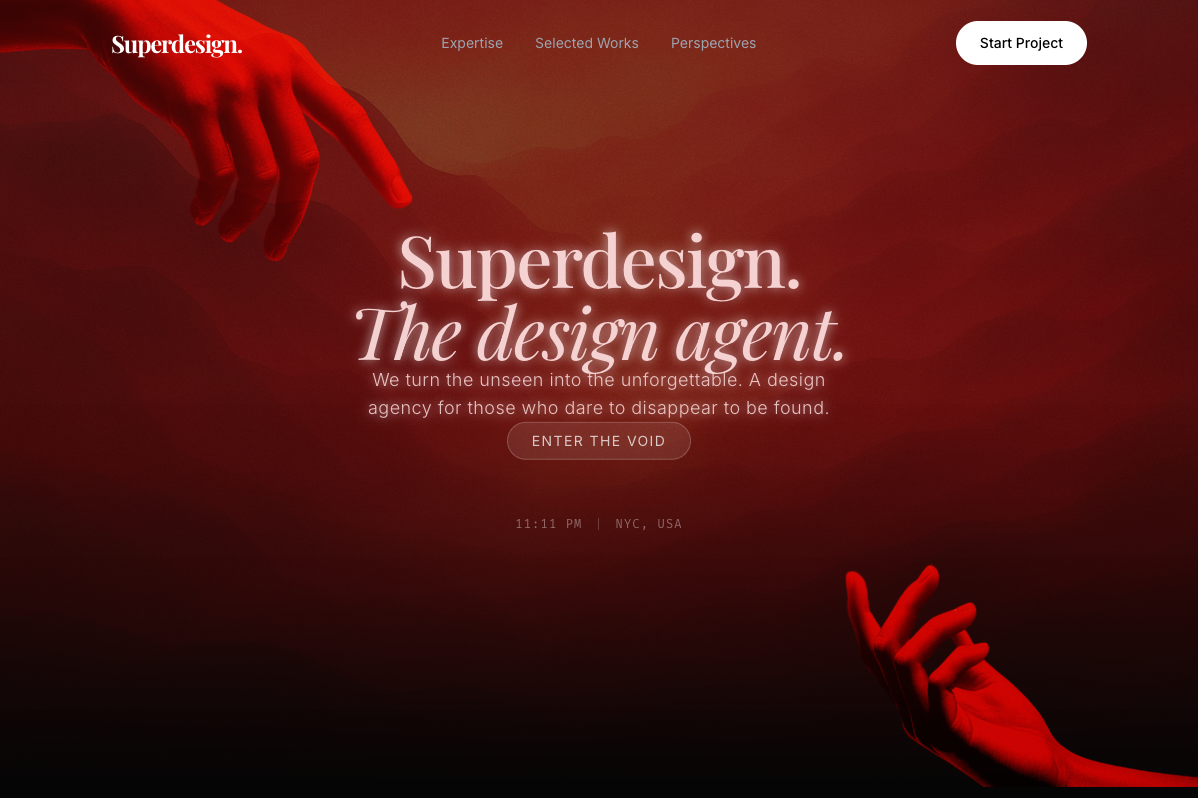
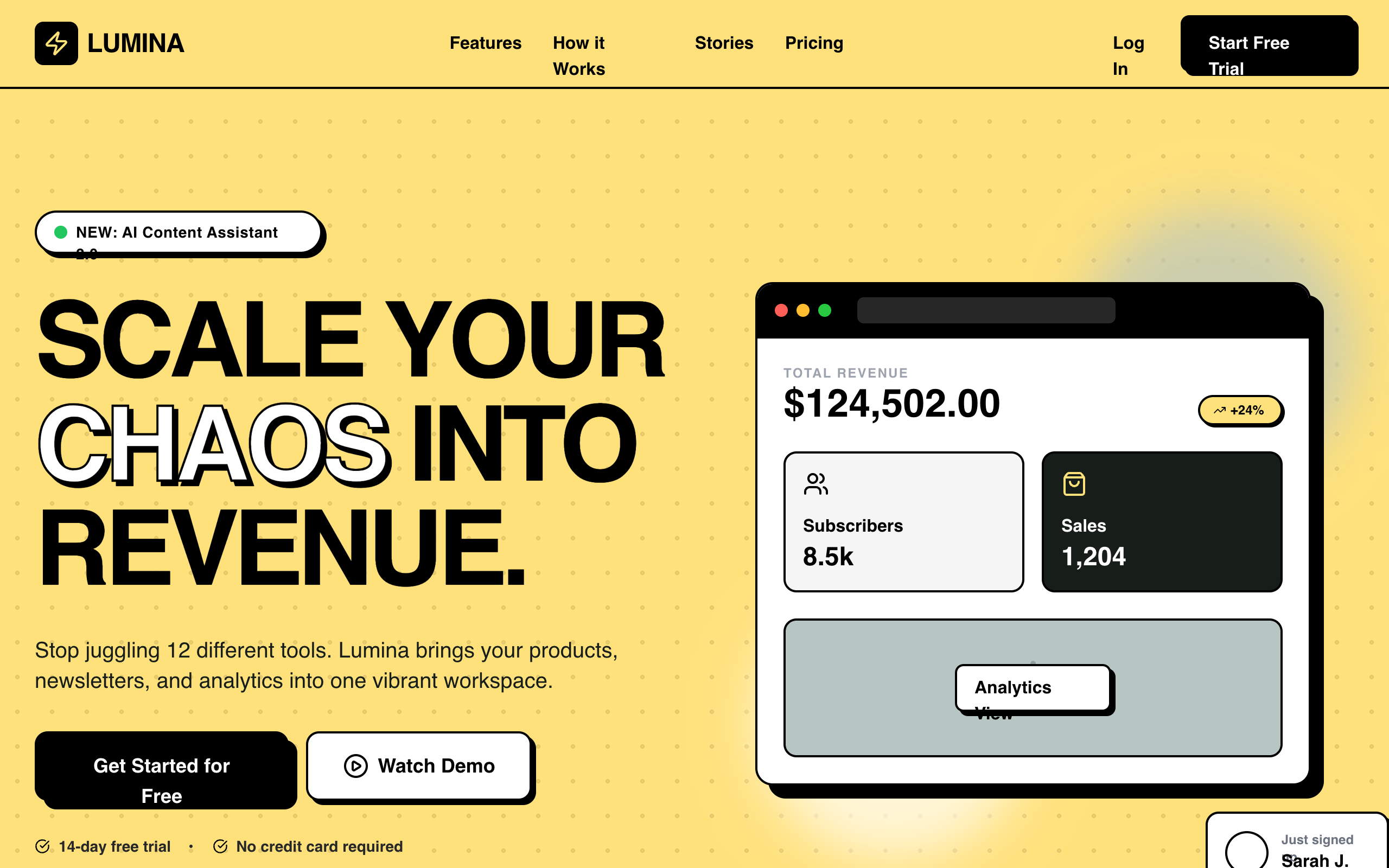
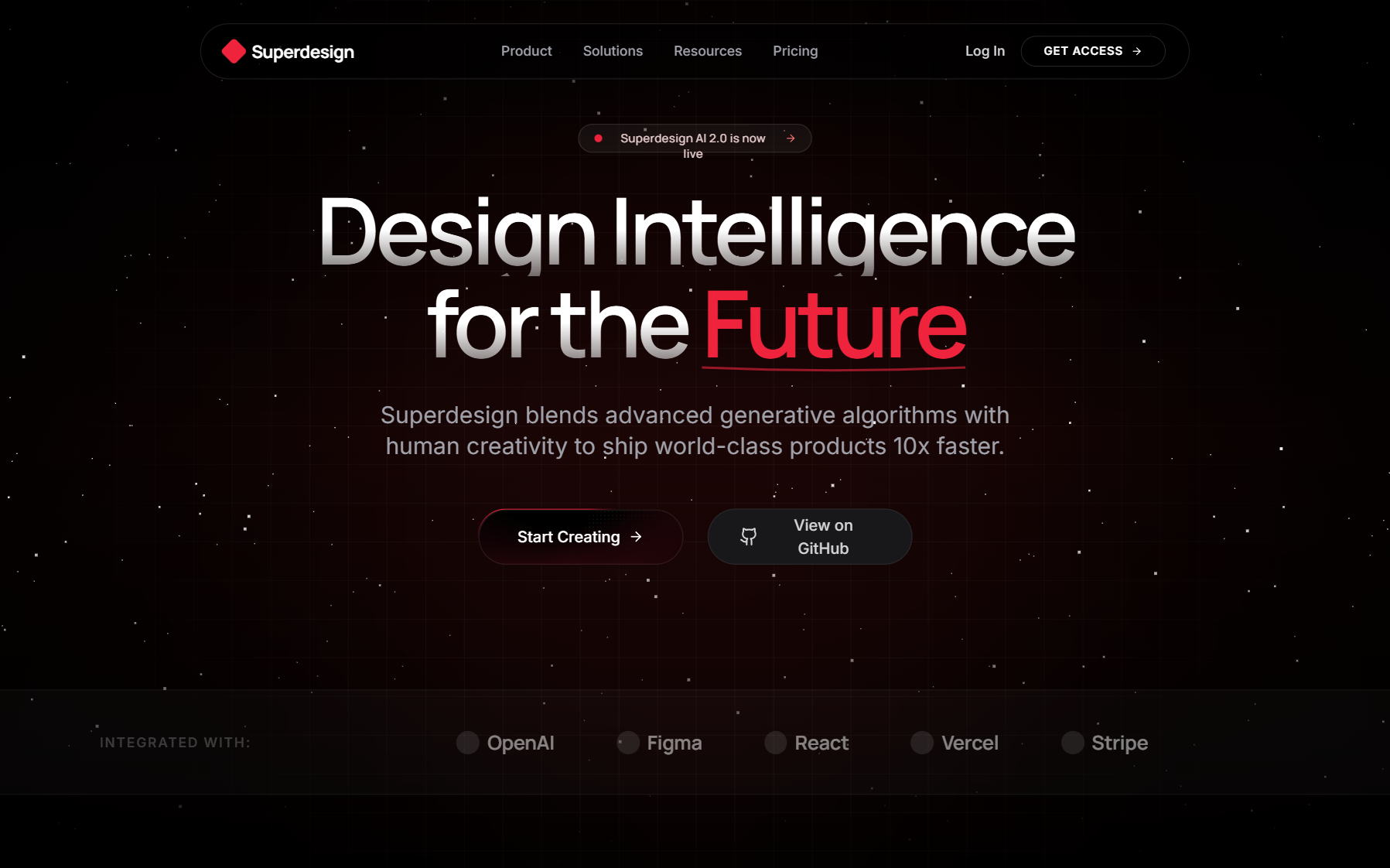
Most AI design tools make a beautiful landing page and a broken dashboard, and it is not a fluke. This guide is the method for getting dense, consistent product UI out of AI (tables, settings, and the loading, empty, and error states users actually hit), instead of a pretty screenshot that falls apart on the second click.
The core mismatch to understand: a landing page is one screen that needs to impress, a dashboard is fifty states that need to agree with each other. AI design defaults (a bold hero, expressive type, one aesthetic risk) are exactly wrong for a data table with sortable columns, an empty state, a loading skeleton, and a settings form that all have to feel like one product. Get that framing right and the rest is method.

Build a dashboard with AI, step by step
Dense product UI is the opposite of a landing page: it rewards consistency and state coverage, not a striking hero. Here is the method that gets it right:
Build a dashboard with AI, step by step
Start from a reference, per surface
Grab dashboard, table, and settings patterns from the prompt library or capture a real product you admire. One reference per surface, not one vibe for the whole app.
Lock a design system first
One accent, one spacing rhythm, one input style, in a design-system file the AI reads every time, so 50 components agree with each other.
Generate, then explore layouts in parallel
Fork a few information hierarchies (sidebar vs top-nav, cards vs dense table) and compare them side by side before committing.
Design every state, not just the happy path
Walk the loading, empty, error, overflow, and mobile-reflow states for each surface, not just the populated happy path.
Screenshot-loop each state
Screenshot every state and fix against the reference, not against the AI's own opinion of its work.
Why is AI bad at dashboards but good at landing pages?
AI is good at landing pages because a landing page rewards what models are tuned to do (commit to one hero, one typographic statement, one aesthetic risk) and bad at dashboards because dense product UI rewards the opposite: restraint, density, consistency, and exhaustive state coverage. Anthropic's own frontend-design skill literally optimizes for a memorable hero and an "aesthetic risk," which is why it lifts marketing pages and falls short on app surfaces. We unpack the skill itself in how to design good UI with Claude Code.
Concretely, a dashboard is where the cracks show. The first screenshot of a generated dashboard often looks fine, then you find the table does not reflow on mobile, there is no empty state, the loading state is a spinner slapped on at the end, the filter bar and the settings form use different input styles, and the whole thing drifts from your existing product. None of that is a hero problem. It is a hundred small decisions a "be distinctive" instruction never touches. This is the same root cause as generic output everywhere, covered in why AI design looks generic.
What makes dense product UI hard for AI?
Dense product UI is hard because it is defined by the parts that do not photograph well: states, density, and consistency across many components. A model generating from a text prompt optimizes the happy path (the populated table, the filled-in form) and skips the rest. Here is what actually has to be designed, and what AI skips by default:
| Surface | What AI does by default | What it skips |
|---|---|---|
| Data table | A populated table that looks fine | Sort/filter states, pagination, empty result, loading skeleton, mobile reflow |
| Forms / settings | A clean filled-in form | Validation, error states, disabled states, success feedback |
| Dashboard shell | A nice hero card up top | Consistent spacing across widgets, density, information hierarchy |
| Any surface | The success state | Loading, empty, and error states (the ones users actually hit) |
The pattern: AI ships the screenshot-friendly state and leaves the states that make a product feel finished. Designing those explicitly is most of the work, and it is exactly what a reference and a checklist force you to cover.
How do you get good dashboard UI from AI?
You give the AI a concrete reference for each surface, lock a design system so everything stays consistent, and design the states explicitly instead of hoping. Three moves, in order:
- A reference per surface, not one vibe for the whole app. "Make a clean dashboard" returns the average dashboard. Hand the AI a real reference for the table, the filter bar, the settings page, and the detail panel separately. Pull proven patterns from the Superdesign prompt library or capture a real product UI you admire, so each surface has something specific to match.
- One design system, enforced. A dashboard is 50 components that must agree: same input height, same card padding, same spacing rhythm, same one accent color. Put that in a
CLAUDE.mdor design-system file so the AI does not re-invent it per screen. The Claude Code UI guide has a copyable block. - Design the states on purpose. Name them in the prompt and verify each one.
The states to design for every surface
- ✓Loading (skeletons, not a bare spinner)
- ✓Empty (first-run, no data yet, with a clear next action)
- ✓Error (failed load, failed save, partial data)
- ✓Populated (the happy path AI gives you by default)
- ✓Long text and overflow (names, numbers, descriptions that do not fit)
- ✓Mobile reflow (how the table and panels collapse)
What does the dashboard screenshot loop look like?
It is the same render, screenshot, compare, refine loop as any AI UI work, but you run it once per state, not once per screen, because the states are the whole point. Generate the surface, then walk it: screenshot the empty state, the loading state, the error state, the mobile width, and paste each back with specific feedback. Do not ask the AI whether its own dashboard "looks good," the same agent that built it is not a reliable judge, and a dashboard hides its problems in the states a single glance never sees.
This is where AI design tools earn or lose their keep. A tool that only generates the pretty populated view leaves you to discover the missing states in production. A workflow built around real app surfaces designs and checks them up front.
How does Superdesign help with dashboards specifically?
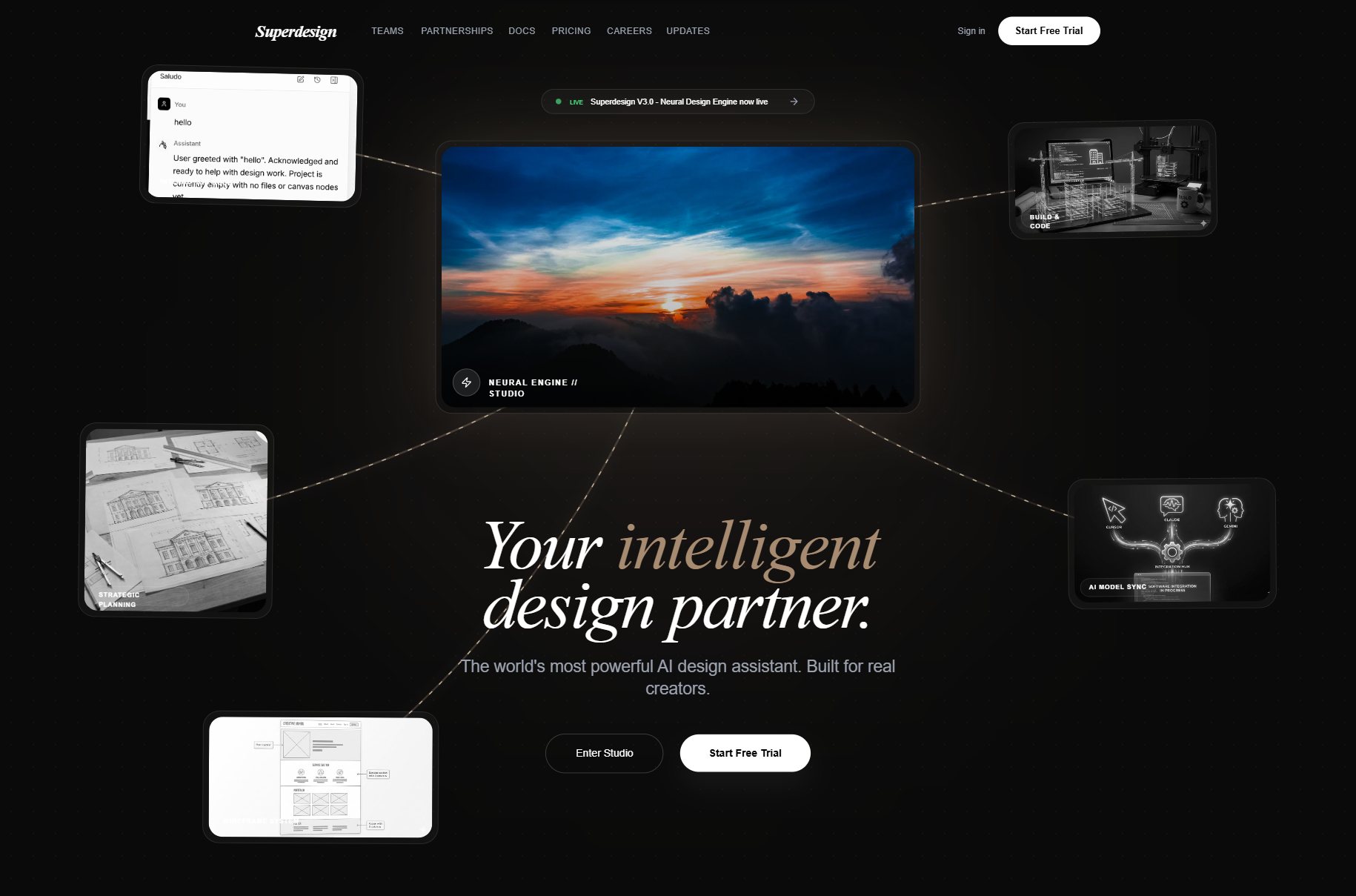
Superdesign is built for real app surfaces, not just brand pages: it explores several dashboard layouts at once on a canvas, keeps them anchored to your actual product, and hands back real React and Tailwind. The pieces that matter for dense UI specifically:
- Parallel layouts to compare. A dashboard's information hierarchy is a judgment call, so fork several arrangements at once (sidebar vs top-nav, cards vs dense table, split detail panel) and compare them side by side instead of iterating one guess linearly.
- A design-system file for consistency. Superdesign learns your project first and writes a design-system file, so the table, the settings page, and the detail panel share one system instead of drifting apart, the single biggest reason AI dashboards look unfinished.
- A library of real app patterns. The free prompt library has dashboard, table, settings, and component patterns to use as references, so each surface starts from something proven rather than a text description.
It runs as a skill inside Claude Code or Cursor, so the design step lives next to your code, and the output is React and Tailwind you can ship. If you want the full agent-workflow argument, see how to design good UI with Claude Code; for the broader tool landscape, see the best AI UI generator for developers.
How should you build a dashboard with AI, step by step?
The five-step method is at the top of this guide: start from a reference per surface, lock a design system, generate and explore layouts in parallel, design every state, and screenshot-loop each one. Each section above expands on a piece of it.
The takeaway: a landing page asks AI to impress once, a dashboard asks it to be consistent fifty times. Give it a reference, a system, and a state checklist, and AI builds product UI you can actually ship, not just a pretty screenshot that breaks on the second click.