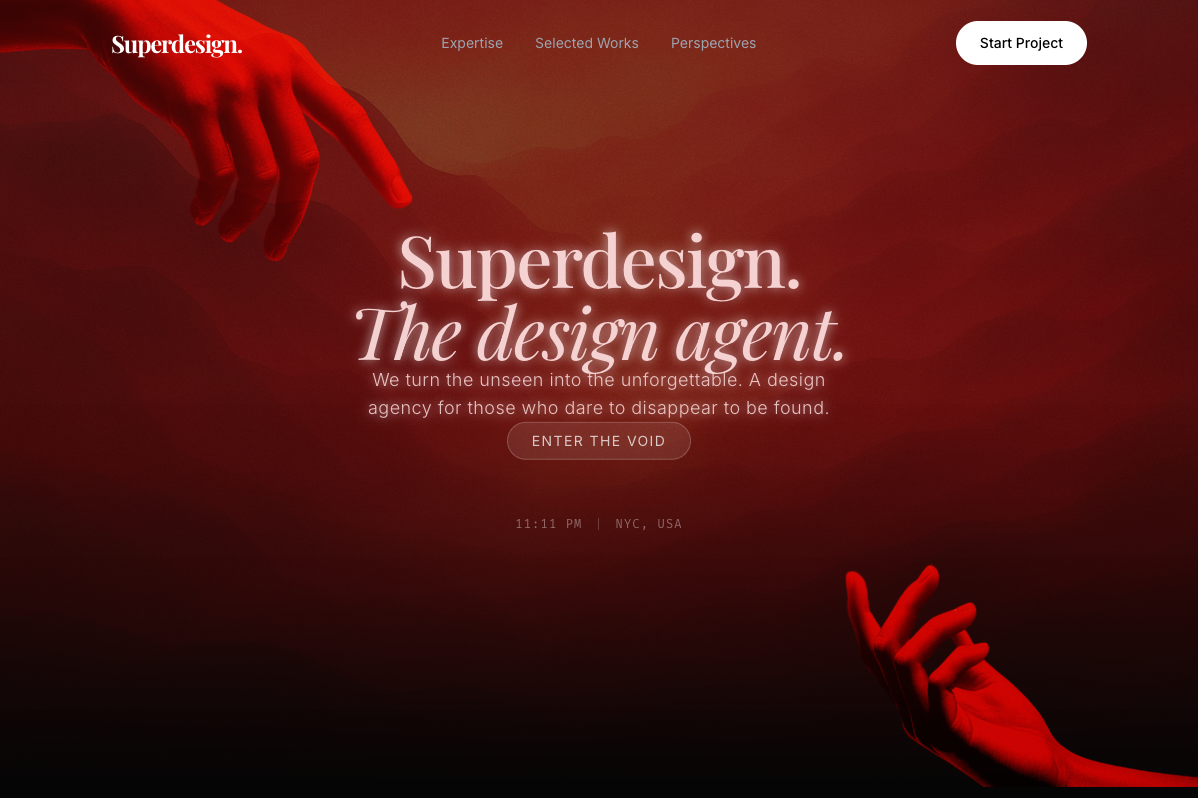
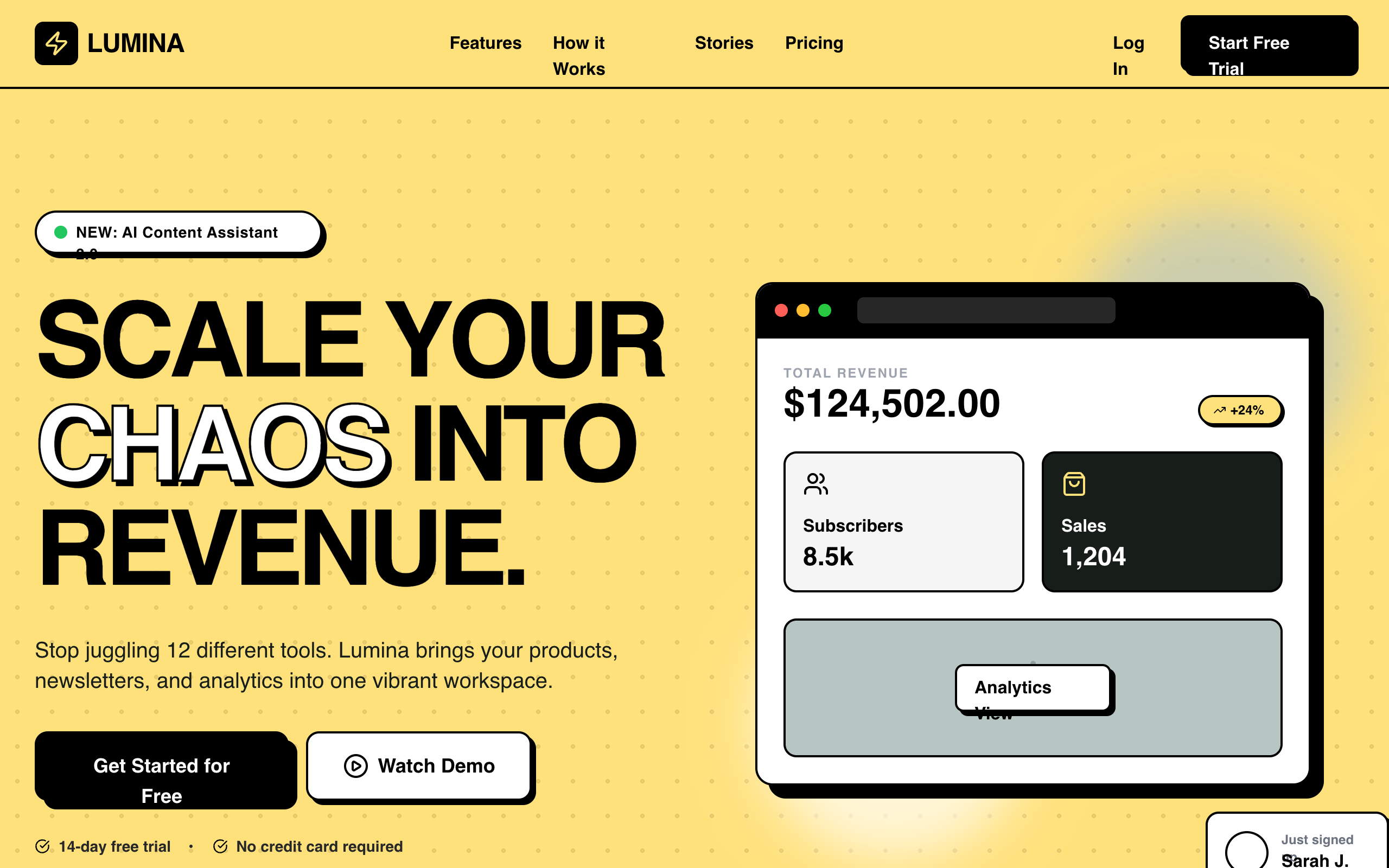
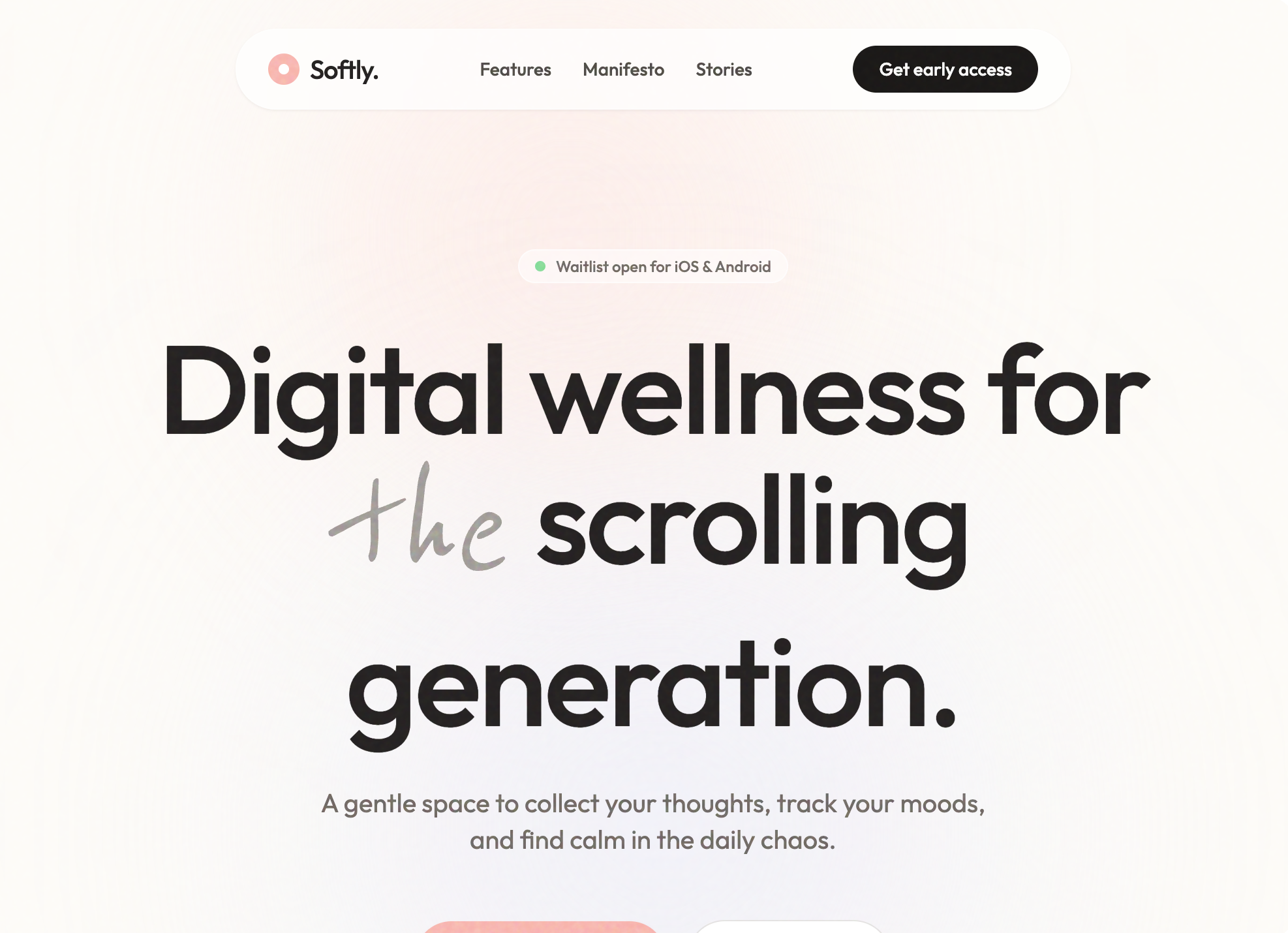
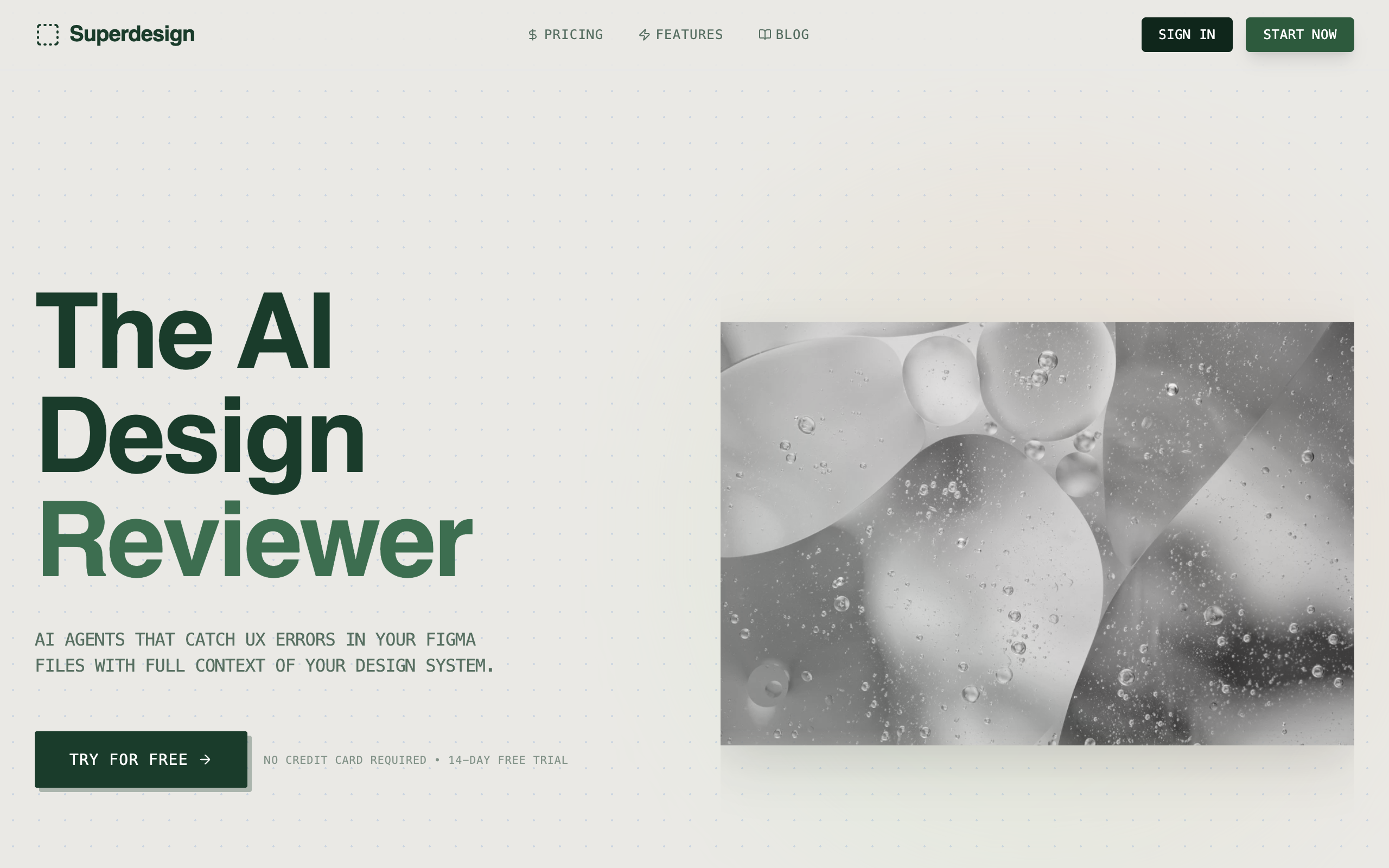
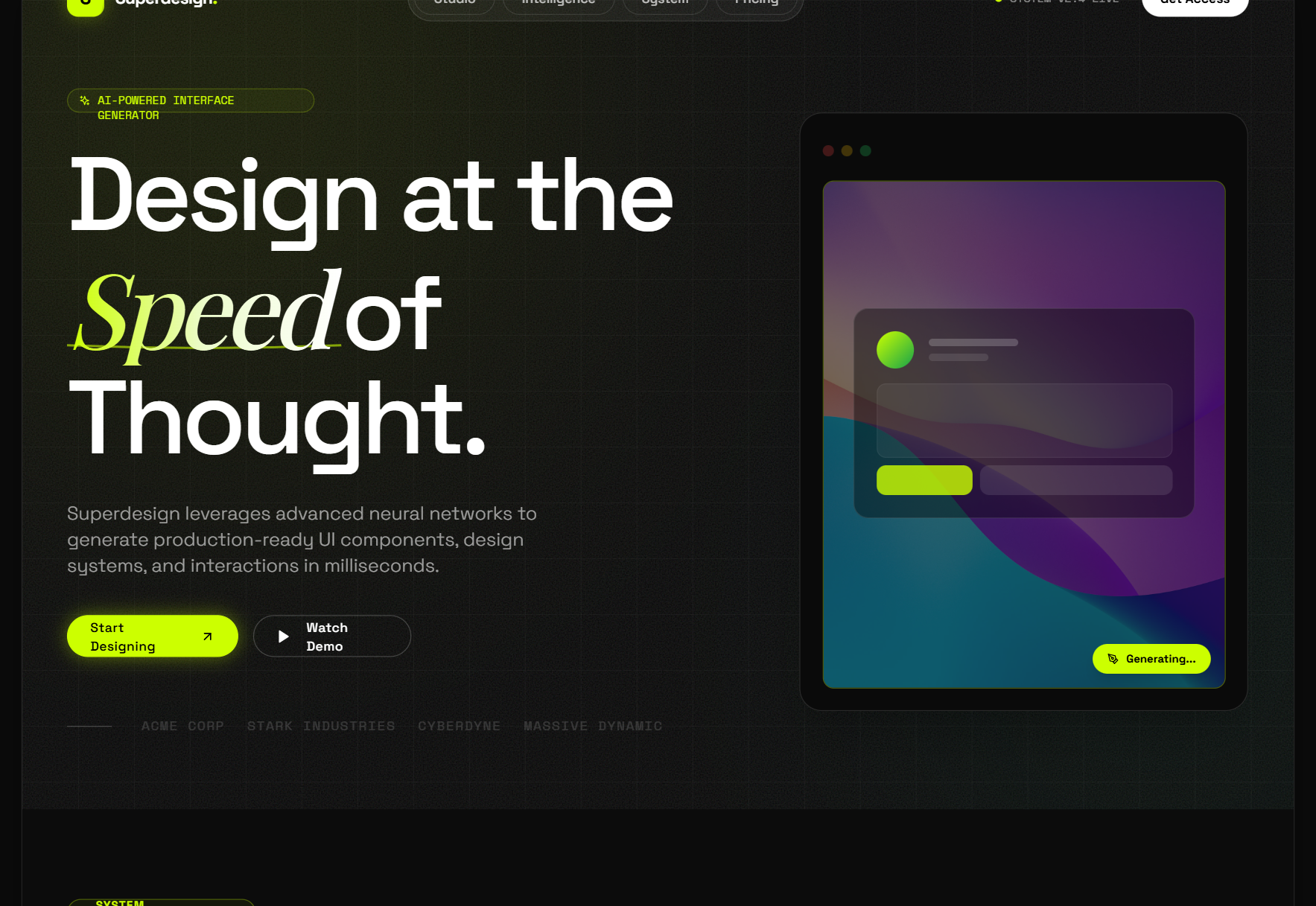
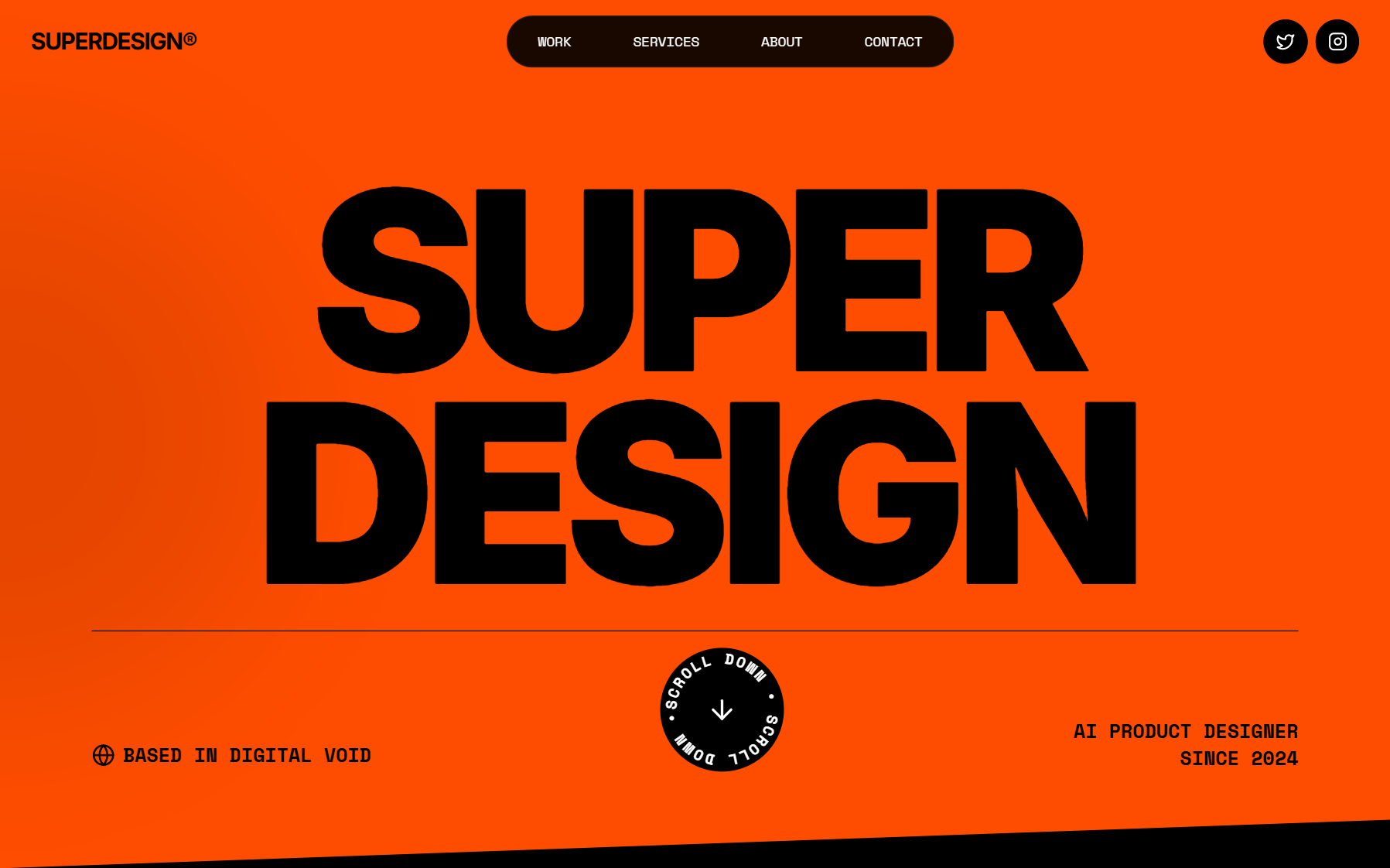
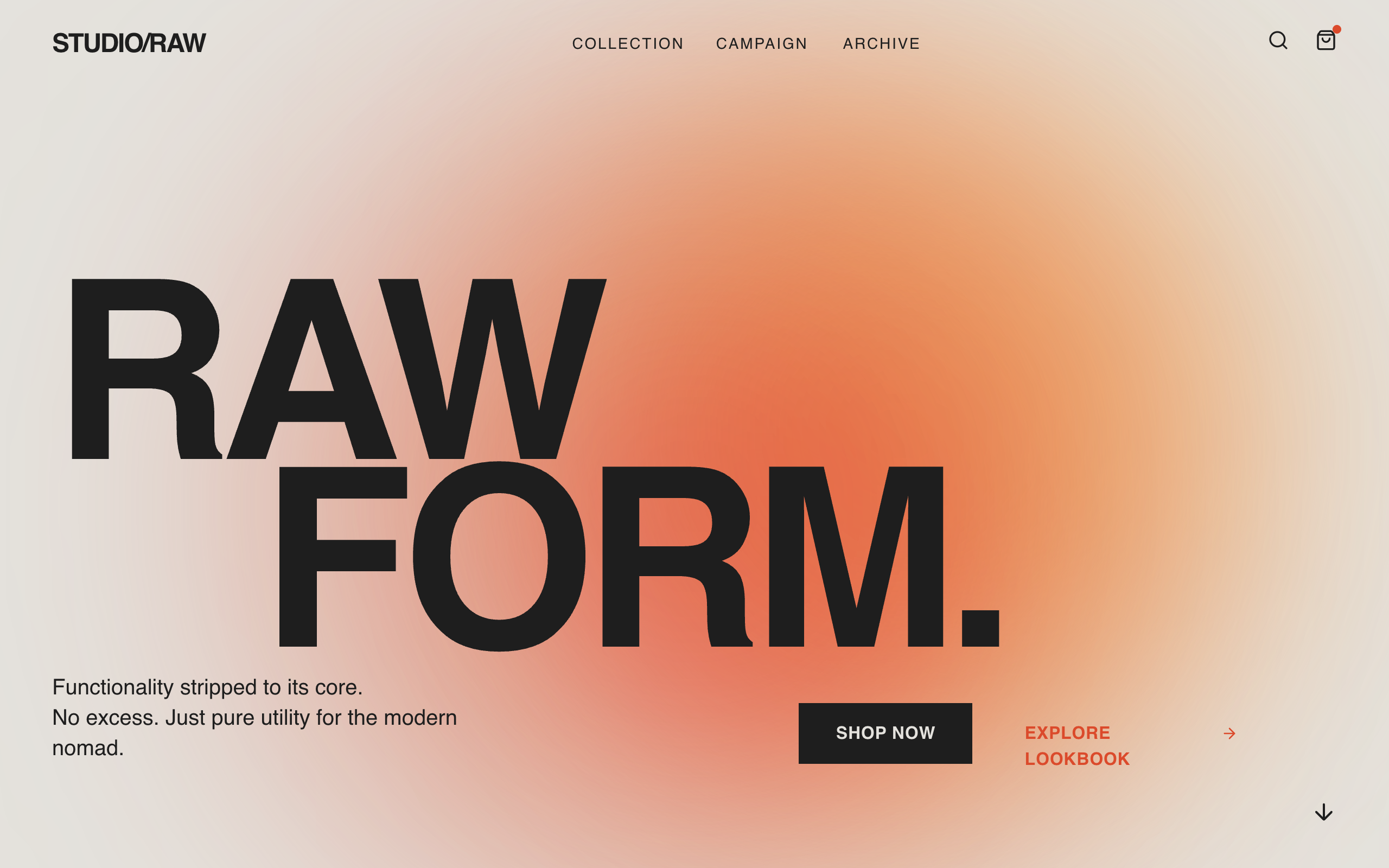
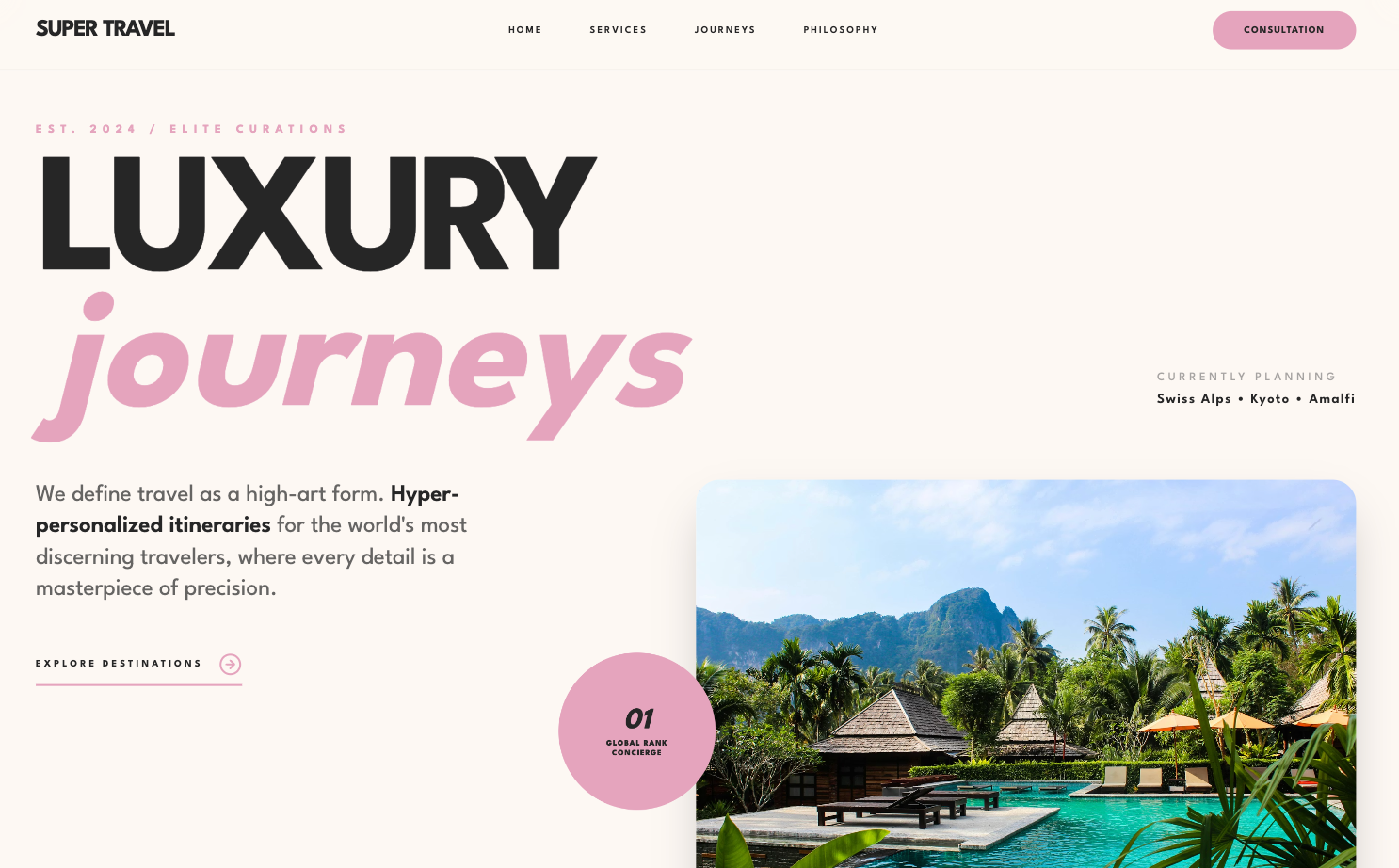
To make your Claude Code UI look good, stop prompting it like an engineer and start prompting it like an art director: give it a real visual reference before it writes a line, lock your fonts, colors, and spacing into a file so it stops re-guessing, and run a screenshot loop because Claude cannot see what it built. Most "Claude Code UI is ugly" complaints trace to one of four fixable gaps, and the fix is almost always the prompt, not the model. This is the tactical, copy-this-prompt version. For the full strategy and the skill setup, read the pillar: how to design good UI with Claude Code.

Why your Claude Code UI looks ugly
It looks ugly for four specific reasons, and none of them is "Claude is bad at code." Claude writes clean, accessible, responsive CSS. It just designs blind. When you hand it a vague request, it returns the statistical center of its training data, and that center has a face: Inter font, a purple-to-indigo gradient, a centered hero, three rounded cards. That is the same root cause behind every generic AI page, which we unpack in why AI design looks generic.
The four gaps, plainly:
- No eyes. Claude renders nothing. It writes CSS it has never looked at, so a layout that is technically correct can still look broken.
- No design memory. Each session starts cold. The nice version it made yesterday is gone, so every screen drifts to a slightly different average.
- No feedback loop. Without a screenshot going back in, it never sees the gap between "valid code" and "looks right."
- Safe defaults. Given no direction, it picks the highest-probability everything: the safest font, the safest gradient, the safest grid.
Fix those four and the output changes hard. Here is the sequence, then each fix as an actual prompt.
Make Claude Code UI look good
Give it a reference before it codes
Hand Claude a real visual (a screenshot, a live site, a prompt-library pattern) instead of an adjective like "modern." It copies structure it can see.
Lock a design system so it stops drifting
Put your fonts, colors, and 8px spacing in a CLAUDE.md so every screen inherits the same rules instead of re-guessing them.
Prompt with constraints that beat the defaults
Forbid the slop out loud (no purple gradient, no centered hero, no three-card row) and name the density and states you want.
Iterate from a screenshot before you ship
Claude cannot see its own output, so feed it the render and ask for a concrete diff. Repeat until it matches the reference.
Give it a reference before it codes
The single biggest upgrade is handing Claude a concrete visual to build against instead of an adjective. "Make it look modern" is an instruction to return the average again, because modern has no shape. A reference does. Claude's vision is genuinely good at reading a screenshot and reproducing its structure, spacing, and type pairings.
Watch the difference:
# Before (gets you slop)
Build a pricing page for my SaaS.

# After (gets you a real design)
Build a pricing page. Match the structure and visual tone of this
reference: [paste a screenshot or a prompt-library pattern].
Three tiers, the middle one featured. Keep the type scale and the
generous whitespace from the reference, not a tight default grid.
Where do you get a good reference? Pull a proven pattern from the free Superdesign prompt library, capture a live site you admire (see how to clone a website's design), or generate a polished direction on a design canvas and hand it over. The point is the same: give it taste to copy, do not ask it to invent taste from text.
Lock a design system so it stops drifting
Put your design decisions in a file Claude reads every session, so it stops re-rolling them. This is what kills the "every screen looks slightly different" problem. The pillar has a full copyable CLAUDE.md block; the short version is to make the rules operational, not aspirational.
# Before
Use a nice font and good colors.

# After (drop this in CLAUDE.md)
Typography: never Inter, Roboto, or system fonts. Display: Fraunces.
Body: a clean grotesque. Use weight extremes (200 vs 800).
Color: one dominant color plus one sharp accent, all in CSS variables.
Forbidden: purple-to-blue gradients, three-rounded-card heroes.
Spacing: 8px rhythm. Hierarchy from type and space, not borders.
"Nice font and good colors" means nothing to a model. "Fraunces display, 8px rhythm, one accent, no purple" is something it executes the same way every time. The full block, plus wiring shadcn/ui in through MCP so Claude uses current component signatures, is in the pillar guide.
Prompt patterns that beat the generic look
Most ugly output comes from prompts that describe the feature but never the design. Engineers prompt for behavior ("a settings page with tabs") and leave every visual decision to the default. Name the decisions and the average never gets a chance.
Three rewrites that do most of the work:
- Trade adjectives for constraints. "Clean and modern" returns the average. "Two fonts max, one accent color, generous line height, no card shadows" returns a decision.
- Forbid the defaults out loud. Add "no purple gradient, no centered hero, no three-icon-card row" to the prompt. Naming the slop is the fastest way to dodge it.
- Ask for the boring states. "Include the loading, empty, and error states, and show the mobile layout" is where real product UI lives, and it is exactly what a "be distinctive" instinct skips.
A full before/after on a dashboard request:
# Before
Make a dashboard for my analytics app.

# After
Build the analytics dashboard. Reference tone: [paste reference].
Constraints: one accent color, 8px spacing, dense data tables (32px
rows), numbers in a mono font. No hero, no gradient, no decorative
cards. Include empty, loading, and error states. Show me the mobile
reflow. Then screenshot the result so we can compare it to the
reference before we call it done.
That last line matters more than it looks.
Iterate visually before you ship
Render it, screenshot it, paste the image back, and give specific feedback. Repeat. This is the loop that closes the "no eyes" gap, and it is the highest-leverage habit on this whole list because it costs nothing. Claude writes correct CSS but cannot judge its own output, and the same agent that wrote the code is the worst reviewer of it.
The trick is replacing description with the actual render. "Make it better" gets you the average again. "Here is the screenshot: the card padding is inconsistent and the heading is too small next to the body" is something Claude fixes precisely. Usually three rounds, under ten minutes, and round two pulls back round one's overcorrection. The first render almost always looks fine; the cracks (janky mobile breakpoints, overflowing text, a missing empty state) only show under a real screenshot. The pillar covers the full screenshot loop in depth.
Let a design agent carry the taste
If you want the reference, the persistent system, and the feedback loop handled in one step instead of by hand, that is the gap Superdesign fills. It runs as a skill inside Claude Code (or Cursor), so the design step lives where you already work:
npm install -g @superdesign/cli@latest
superdesign login
npx skills add superdesigndev/superdesign-skill
Trigger it with /superdesign and a plain-English request. It reads your project first and writes a design-system file plus replicas of your real pages, opens a canvas to explore several polished directions at once, and hands the chosen one back as real React and Tailwind. That covers the four gaps directly: a reference and taste come from a curated prompt library and parallel exploration, the design-system file gives Claude the memory it lacks, and the canvas lets you compare before you commit. Free tier, flat $20/month, no metered credits.
The takeaway: Claude Code is your engineer, not your art director. Give it a reference, a locked system, forbidden defaults, and a screenshot loop, and the ugly generic look goes away. For the broader setup and the skill-vs-system-vs-tool breakdown, the Claude Code UI design pillar is the next read.