The cleanest way to go from a finished Figma design to shippable code is to win the fight before you convert anything: output quality is decided by how the Figma file is built, not by which converter you run on it. This guide walks the full workflow, prep, conversion, and cleanup, with the prep stage that most guides skip kept front and center. For the head-to-head tool comparison, see our Figma to code pillar.

The figma design to code workflow in 3 stages
Clean code out starts with a clean file in. The workflow is three stages, and the first one is the one most guides skip:
The figma design to code workflow in 3 stages
Prep the Figma file
Give the converter a structure that already looks like code: auto layout on every container, semantic layer names, Figma Variables for your tokens, and real components with variants. This stage decides everything downstream.
Convert it to a framework
Run a plugin (Anima, Locofy, Builder.io), the Figma MCP server with Code Connect, or a design agent. Which path you pick depends on whether Figma stays your source of truth.
Clean up the output
No converter ships 100 percent ready code. Swap generated divs for your real components, hardcoded values for tokens, then add states and accessibility. Cleanup time is inversely proportional to prep time.
What is the figma design to code workflow?
The figma design to code workflow is a three-stage process: prepare the Figma file so its structure maps to code, convert it into a framework (React, Tailwind, HTML/CSS), then clean up the output. The first stage is the one most guides skip, and it is the one that decides whether you ship in an hour or refactor for a day.
Every converter, whether it is a plugin, Figma's MCP server, or an AI agent, reads the structure of your file and tries to turn it into a DOM. If that structure is a pile of absolutely-positioned, ungrouped layers named "Frame 74," you get a pile of absolutely-positioned divs back. If it is auto layout with named variables and real components, you get something close to a component tree. Same tool, wildly different output, and the only variable that changed was the file.
Why output quality is set before conversion
Output quality is set in the Figma file because every conversion tool is a force multiplier, not a magic wand. The independent reviews are blunt about it. One Figma-to-code teardown puts it directly: "the quality of Anima's output is directly proportional to the cleanliness of the source Figma file," and a disorganized file produces "messy, unpredictable code." A senior-designer roundup is even shorter on Locofy: "If you don't use auto-layout properly, Locofy will generate horrific code."
The "garbage in, garbage out" rule holds across the category. A 2026 agency comparison found these plugins handle roughly 60 to 75 percent of the initial layout work on a clean file, and that Anima's output on a messy file is "essentially a screenshot rebuilt in HTML," where "refactoring Anima output into maintainable components typically takes longer than building from scratch." So the highest-leverage thing you can do for code quality is not picking a better converter. It is spending twenty minutes on the file first.
Prep your Figma file first
Prep means giving the converter a structure that already looks like code: auto layout for every container, semantic names on every layer, variables for your design tokens, and variants for component states. These four moves do more for output quality than any tool choice, because they are the exact signals every converter reads.
The Figma file prep checklist (do these before you convert)
- ✓Auto layout on every container: it maps directly to flexbox and CSS Grid, the single most impactful action for a clean import
- ✓Name layers semantically: 'Frame 74' becomes a class or component name, so rename it 'CreateProjectModal' or 'PricingCard'
- ✓Use Figma Variables as your single source of truth for color, spacing, and type, mapped from base tokens to semantic tokens
- ✓Make real components with variants for Default, Hover, and Disabled: variants map to CSS pseudo-classes or state props
- ✓Keep the layer hierarchy flat: deep nesting produces a bloated, hard-to-style DOM
- ✓Match layer order to reading order: visual stacking should reflect the intended DOM and accessibility order
Verbatim from Builder.io vs Locofy vs Anima, 2026
Auto layout is the one that pays off most. Figma's own team frames it as designing "with the same physics as the browser," using stacks, padding, and wrap rules, so "the layout logic is already baked into the design" and translates into clean, predictable code. The reason a converter can produce flexbox at all is that auto layout already described the flex behavior. Without it, the tool has to guess from pixel coordinates, and guessing is where the absolute-positioning mess comes from.
Naming is the cheapest win and the one people skip. Layer names become class names and component names in generated code, so an hour spent renaming "Group 12" to "Navbar" and "Rectangle 3" to "CtaButton" is an hour you do not spend find-and-replacing machine names in your editor afterward.
Sync your tokens to code
Tokens are the bridge between a design decision and a line of code, and the clean version of this workflow defines them once in Figma and lets them flow into your config. If your colors, spacing, and type live as named Figma Variables, a converter can emit them as CSS custom properties or Tailwind theme keys instead of hardcoding #6366f1 in forty places. The mapping you want looks like this in a Tailwind project:
// Tokens named in Figma map 1:1 to your theme.
// 'color/brand/600' in Figma -> theme.colors.brand[600] here.
import type { Config } from "tailwindcss"

export default {
theme: {
  extend: {
    colors: {
      // semantic tokens, not raw hex, so dark mode + rebrands are one edit
      brand: {
        600: "var(--color-brand-600)", // = #4f46e5 in :root
        700: "var(--color-brand-700)",
      },
      surface: "var(--color-surface)",
      "surface-muted": "var(--color-surface-muted)",
    },
    spacing: {
      // match Figma's spacing scale (space/2 = 8px, space/3 = 12px ...)
      2: "0.5rem",
      3: "0.75rem",
      4: "1rem",
    },
    fontSize: {
      // type tokens: 'text/body/md', 'text/heading/lg' ...
      "body-md": ["0.9375rem", { lineHeight: "1.5rem" }],
      "heading-lg": ["1.75rem", { lineHeight: "2.25rem" }],
    },
  },
},
} satisfies Config
For teams that want this automated rather than copied by hand, the established pipeline is Tokens Studio plus Style Dictionary. Tokens Studio is a Figma plugin that manages your tokens as JSON and syncs them to a GitHub repo, and Style Dictionary (originally built by Danny Banks at Amazon, with the Tokens Studio team joining the project in August 2023) transforms that JSON into CSS variables, Tailwind config, or platform code. A common setup pushes a token change from Figma to GitHub, opens a pull request automatically, runs Style Dictionary in CI, and lands the generated variables.css for review. One guide reports the foundational pipeline takes roughly three to five hours to set up, after which it syncs on every Figma publish. Worth it for a design system many people touch, overkill for a one-page marketing site.
Pick your conversion path
There are three ways to turn a prepped Figma file into code in 2026, and they differ by how much of Figma stays in your loop afterward. Plugins convert a finished frame. The Figma MCP server lets your coding agent read the design live. A design agent skips the Figma file entirely. Here is the honest split:
| Path | How it works | Keeps Figma in the loop? | Best for |
|---|---|---|---|
| Figma-to-code plugins (Anima, Locofy, Builder.io) | Run a plugin on a finished frame, get React/HTML out | Yes, the frame is the source | Teams who design in Figma as the source of truth |
| Figma MCP + Code Connect | Your IDE agent queries the Figma MCP server for design data; Code Connect maps frames to your real components | Yes, plus your component library | Design systems with a live codebase and Dev Mode |
| Skip Figma, use a design agent (Superdesign) | Capture live UI or design on a canvas, get React/Tailwind directly | No, there is no frame to maintain | Developers who do not want to keep a Figma file in sync |
The newest of these is Code Connect, which is worth knowing about if you keep a design system. It maps your Figma components to the real components in your repo, so when the MCP server hands your agent a frame, it includes your actual import statements and component snippets instead of generic markup. That is the difference between an agent inventing a new <Button> and reusing the one you already ship. For the full tool-by-tool breakdown of plugins versus MCP versus agents, the Figma to code comparison goes deeper than this workflow guide does.
Skip the Figma file with a design agent
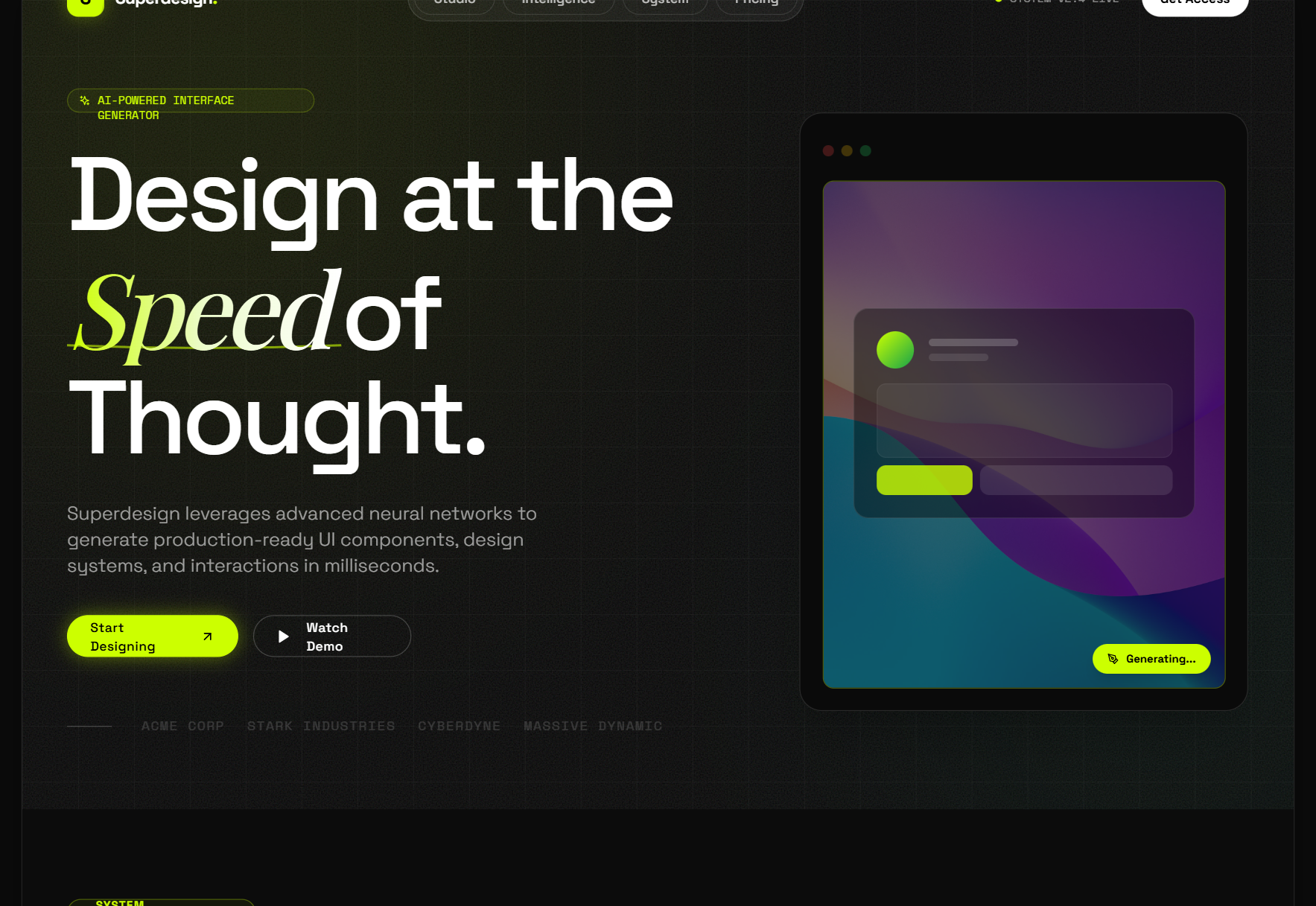
If the reason you opened Figma was to mock up something you will rebuild in code anyway, you can delete the round trip and design directly against real code. This is the path worth considering when you do not want to maintain a Figma file as a second source of truth that drifts from production the moment an engineer tweaks a class. A design agent like Superdesign works two ways here, and both end in React and Tailwind rather than a frame.
The first is capture. Superdesign's free Chrome "Component Grab" lets you grab any live web element, your own production UI or a site you admire, and turns the messy DOM into clean Tailwind, ready to remix or paste into Claude Code or Cursor. Point the same agent at a full page and it can clone the whole thing and extract its style, so you design on a real foundation instead of a blank canvas. There is nothing to keep in sync because the source is the live component, not a redraw of it.
The second is the canvas plus the CLI skill. Invoked from your coding agent, Superdesign investigates your current UI first, builds a design-system file plus replicas of your real pages, then explores several variations at once on an infinite canvas before handing the chosen one back as code. You install it once:
npm install -g @superdesign/cli@latest
superdesign login
npx skills add superdesigndev/superdesign-skill
Then trigger it with /superdesign and a plain-English request. Because the design and the build live in the same place, there is no handoff step where they drift apart. If you want a feel for the output without installing anything, browse the Superdesign prompt library, and if your real target is Tailwind specifically, the Figma to Tailwind guide covers that conversion in detail.
Clean up the output
No converter produces 100 percent shippable code, so budget a cleanup pass regardless of which path you took. Even pro-AI roundups admit no tool emits fully production-ready code from a frame, and reviewers regularly catch AI making unintended changes. The fix is mechanical once you know what to look for, and it is far shorter when the file was prepped well.
The post-conversion cleanup pass
- ✓Replace one-off divs with your real components: a generated card should become your <Card>, not a new bespoke one
- ✓Swap hardcoded values for tokens: any stray hex or pixel value should point at a variable or Tailwind theme key
- ✓Flatten over-nested wrappers: converters love redundant wrapper divs, delete the ones that do nothing
- ✓Check responsive behavior: converters often emit fixed pixel widths where you want relative units and breakpoints
- ✓Add real states and a11y: wire up hover, focus, and disabled, and confirm keyboard order matches the visual order
- ✓Pull logic and data out of the markup: the converter gave you structure, you add the behavior
The pattern across all of this: cleanup time is inversely proportional to prep time. A well-built file converts into something close to your existing components, so cleanup is reuse and wiring. A messy file converts into a literal pixel rebuild, where cleanup is rewriting, and rewriting from scratch is often faster. That is the whole argument for spending the twenty minutes up front.
Which path fits you
The right figma design to code path depends on whether the Figma file is an asset you want to keep or a step you want to remove. If your team designs in Figma as the source of truth, prep the file well and run a plugin, or wire up the MCP server and Code Connect if you maintain a design system. If the Figma file is just a place you mock up things you will code anyway, an agent that captures live UI and writes React directly deletes the handoff.
Either way, the lesson is the same: clean code out starts with a clean file in, or with no file at all. For the tool comparison see Figma to code, for the Tailwind-specific path see Figma to Tailwind, and if you are weighing whether to leave Figma altogether, the Figma alternative guide makes that case honestly. Then go ship the thing.